v 9.9.3
Make the scrolls to the starting position when the page is changed.
Enabled the playing sentence focusing featuer to the paging mode.
Add a horizontal scroll in the paging mode.
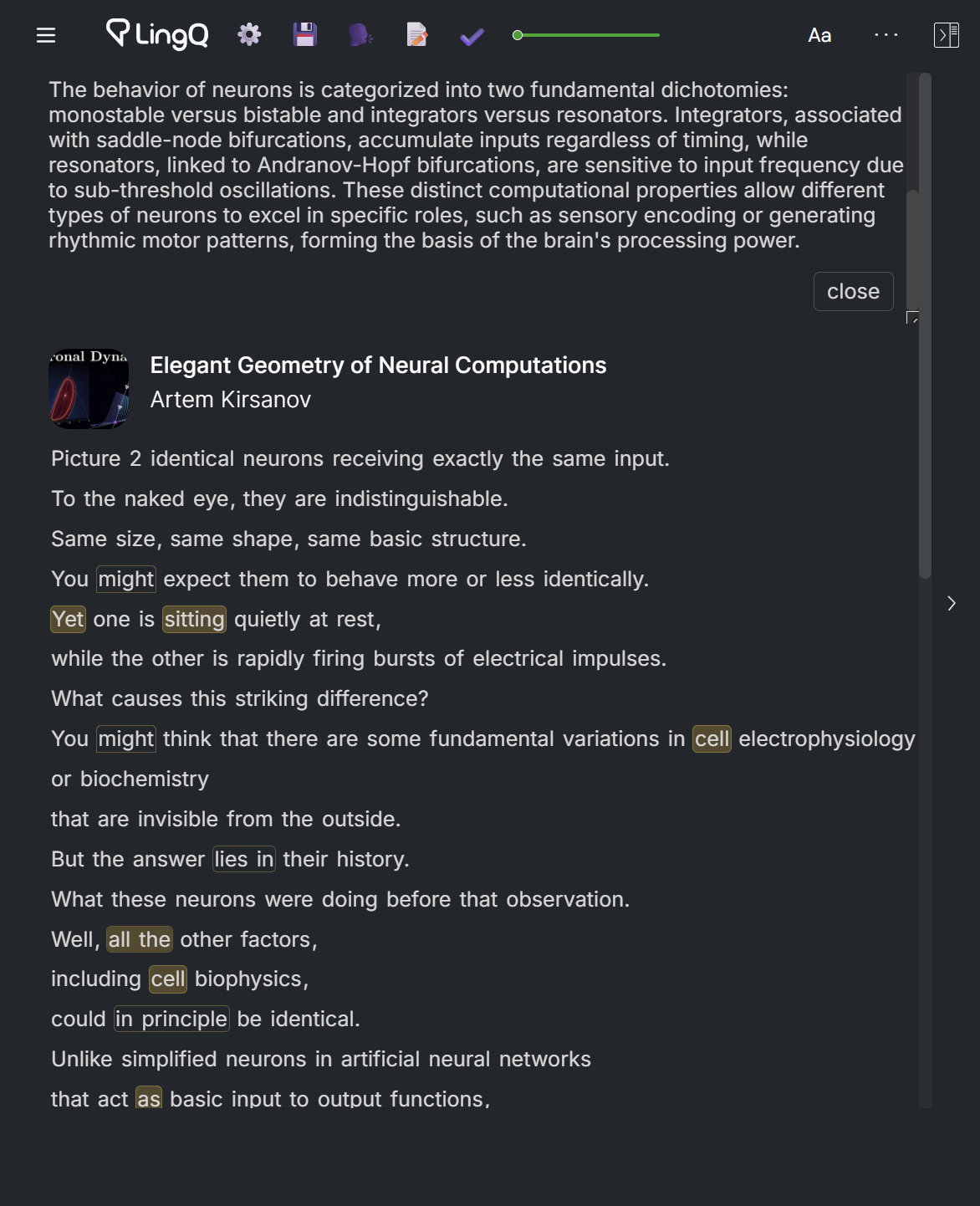
Add the close summary button.
1 Like
v 9.9.5
Fix some UI issues: change the height of pages, style of the close button in the quick-summary.
1 Like
Hi, is it possible to make the page automatically switch to the next one during page view when paging mode is enabled? You can also add a shortcut to switch between page view and sentence view. When i switch to sentence view in paging mode, show translation button disappears.
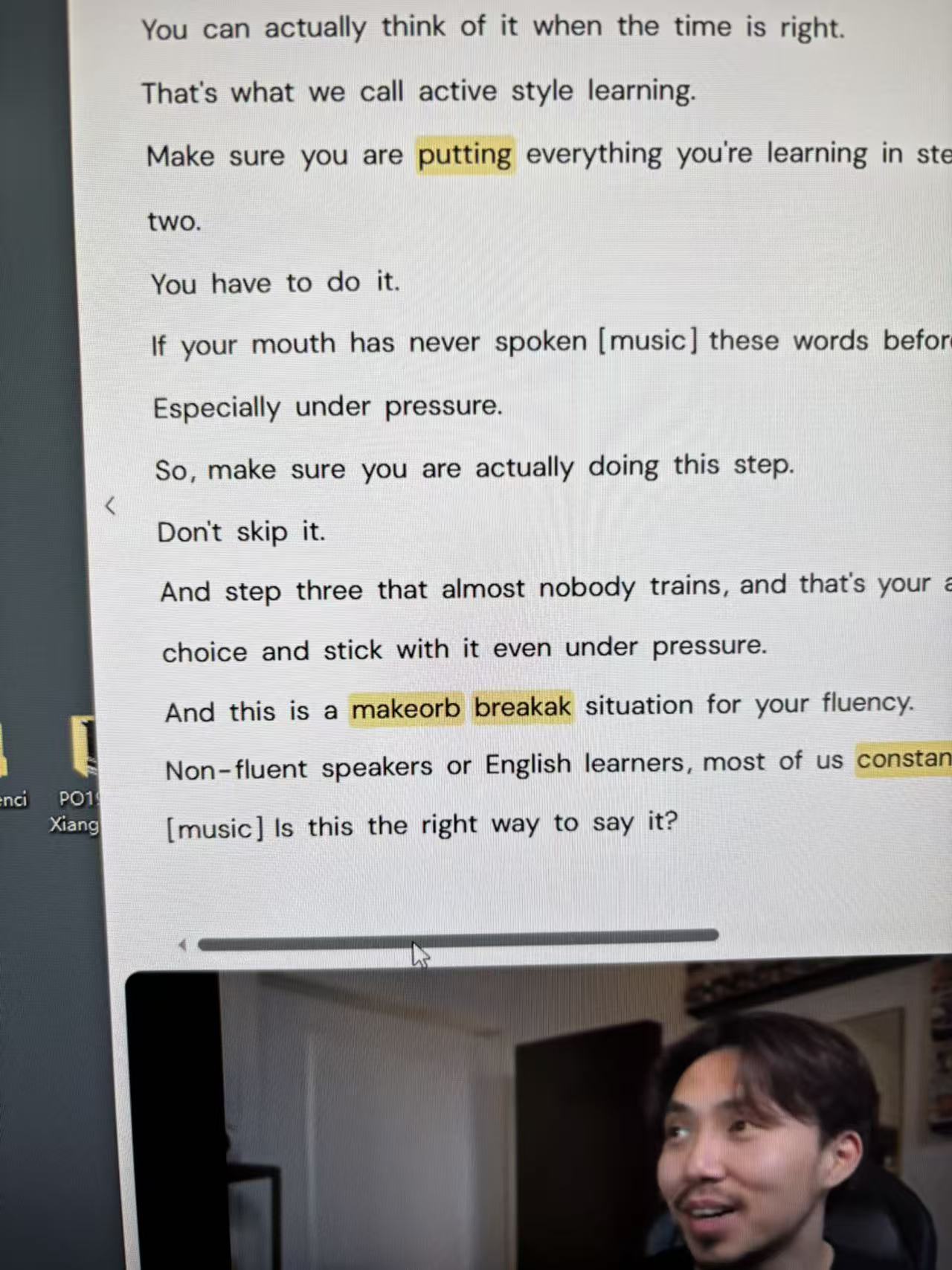

Hello, the automatic scrolling and page turning features are fantastic, but there’s a problem: why does a small section of text often end up on the other side when the page is scrolled horizontally?
This causes the page to move when using the arrow keys on the keyboard to switch words.
That’s an intended behavior.
I wanted to see all the content on a single page. But after a certain length, LingQ couldn’t highlight the LingQ and new words. So, that’s the reason why I developed the page mode.
But there was an issue on the page mode; that the last few lines were omitted and displayed in the second column. I tried to fix that bug but failed. So, that’s a measure to prevent content omission. If you don’t want that, use the “Off” layout.
v10.0.1
Improve the save-flashcard-button finding logic.
Make the quick summary closed before the page transition.
Enable the input window while the response is being generated.
Improve the context-finding logic for the case when the selected word is located at the beginning or the end of the sentence.
Ensure the context’s minimum length.
Improve summary prompts.
Improve context extension logic. Support a new model.
Improve prompts for better-quality response.
Download Script
1 Like
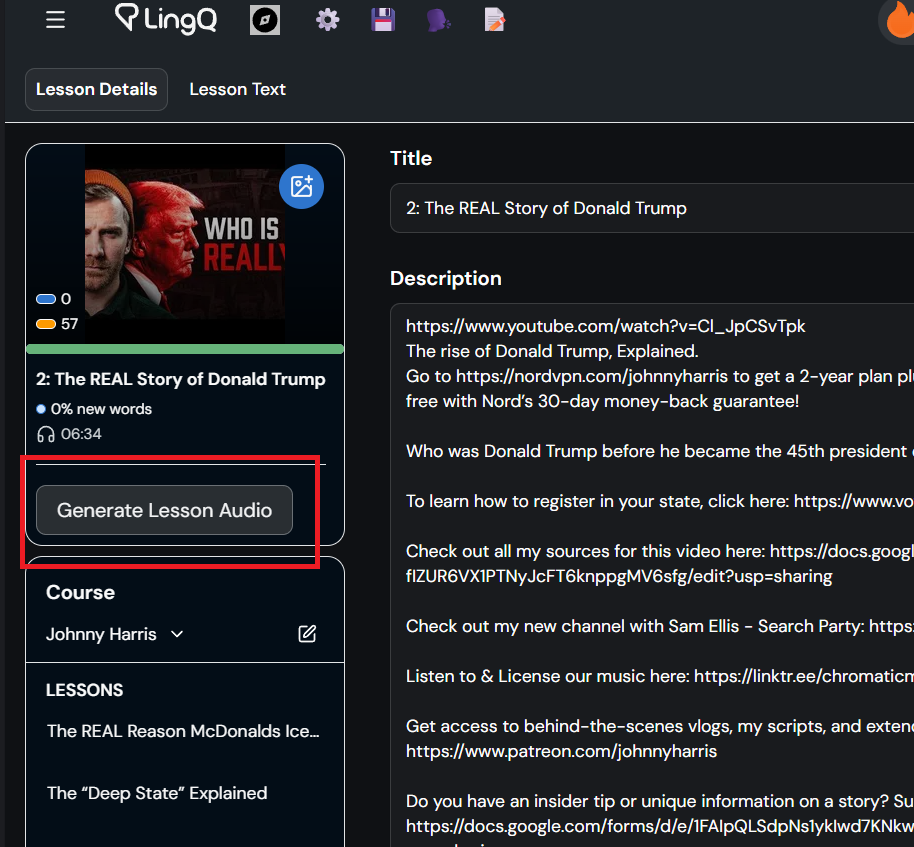
Hi. You know LingQ has changed the design. And now there is no generate audio button in the lesson editor. Fix it if possible.

1 Like
Is it possible to prevent the left and right borders of the window from moving when you press the keyboard to jump to a word?
1 Like
v10.3.1
Disable the scroll triggered by arrow keys.
Modify system prompts for better output quality
Fix a style glitch
Download Script
1 Like
Hello—currently, jumping to a specific word no longer shifts the window position; however, after jumping to a few words, I am unable to continue jumping any further.
That issue doesn’t happen to me. Actually, I don’t use arrow buttons, so it doesn’t have a top priority, and I’m uncertain when I’ll address the issue, but it can be fixed in the future.
v10.7.0
Make each language use a different layout.
Fix an issue that the space key (play&pause) sometimes doesn’t work.
Make each language have its own quick summary setting.
Remove a redundant word display from the flashcard popup, and show pronunciation instead.
Download Script
1 Like
The new version has fixed the issue with jumping to words. Thank you very much!
Good news!

1 Like

Could you tell me where to adjust the text size for this specific location? Alternatively, which line of the script controls the size of this particular text?

v11.0.0
Append a plot to the flashcard manager popup.
Fix a pagination issue on the export as CSV feature.

You can see your flashcard generation history. I think it’s a more accurate learning metric than others (new words, created lingqs, etc.).
Download Script
Okay, that’s working, thank you so much。