Change Log
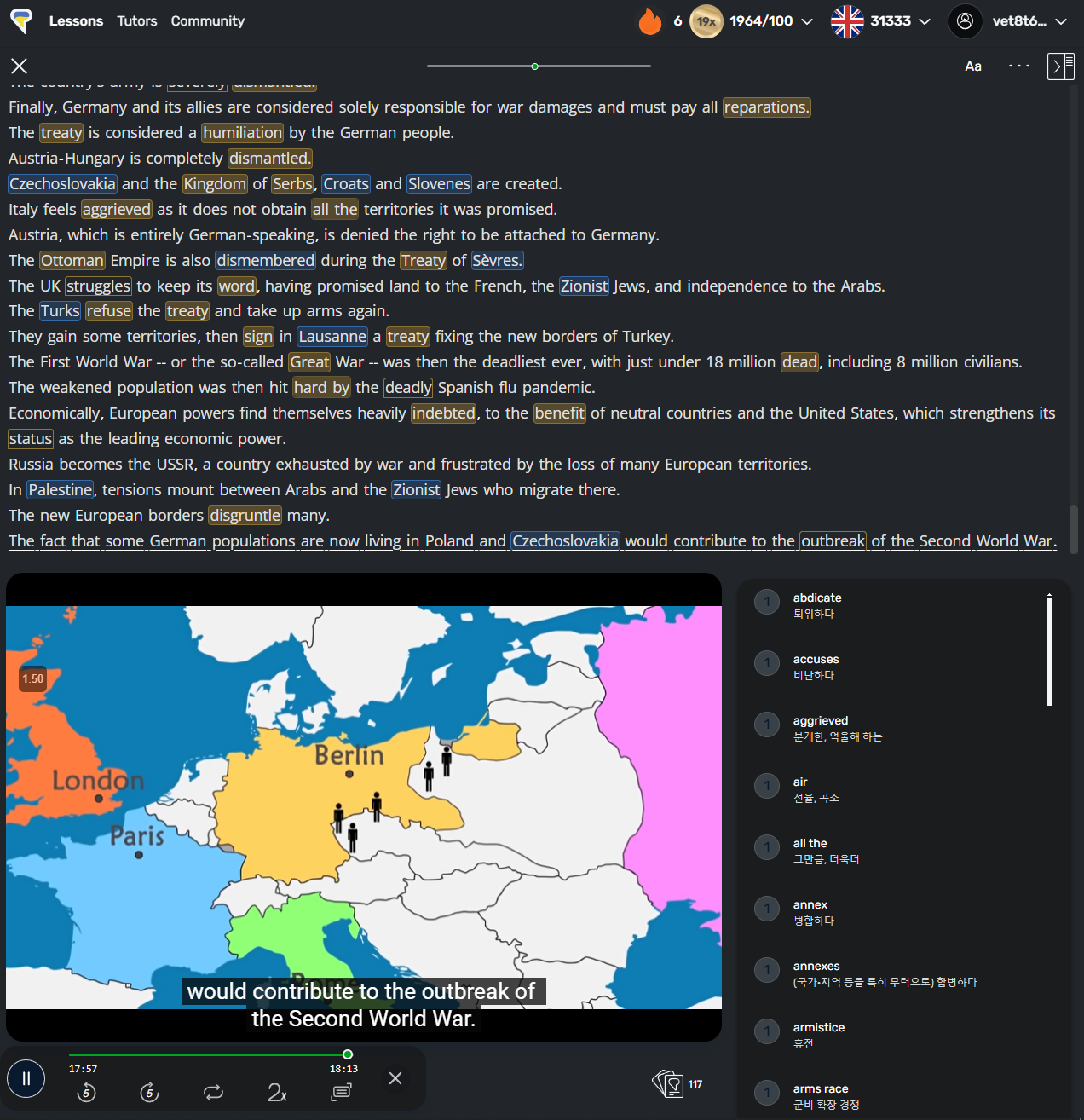
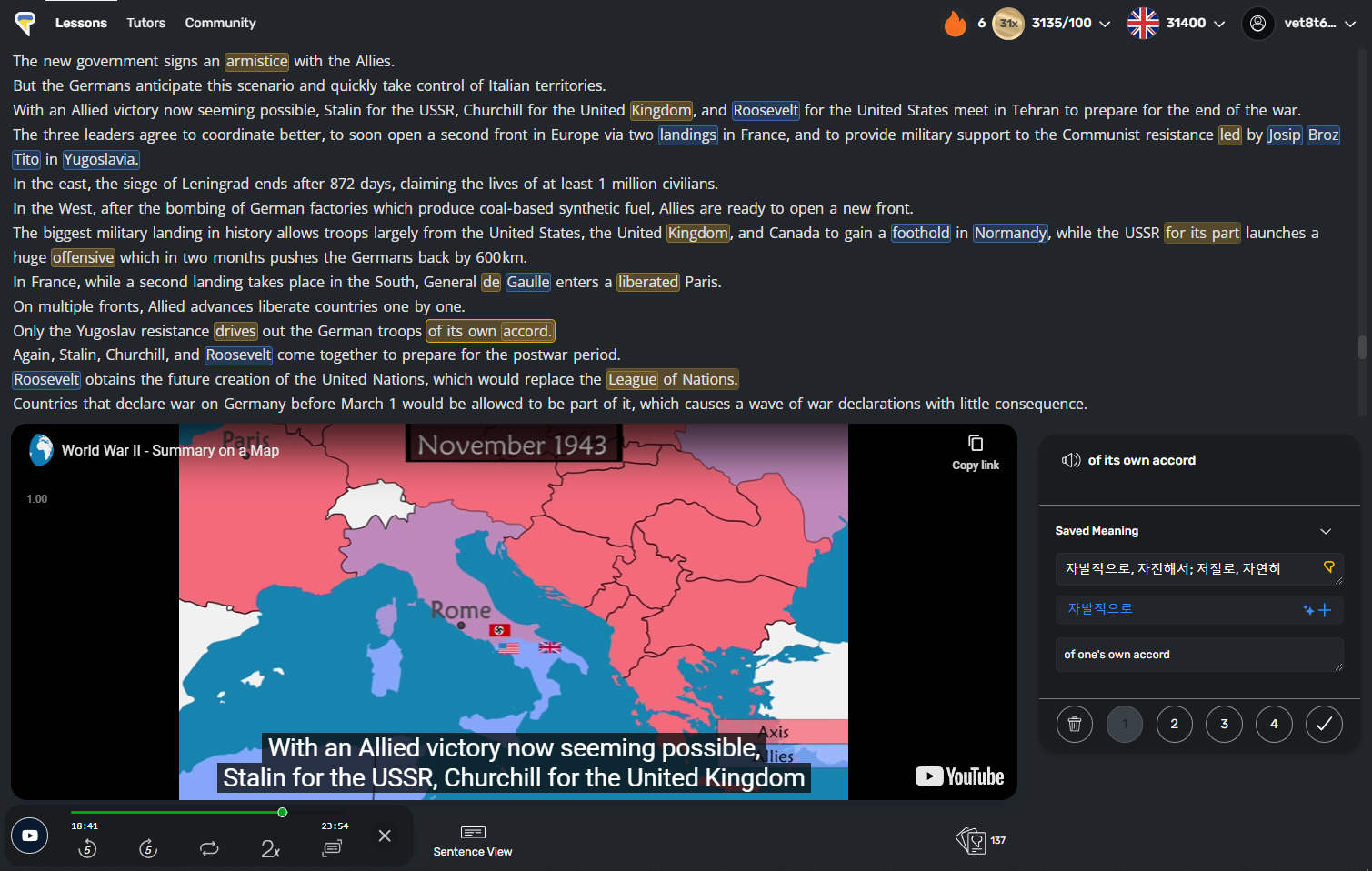
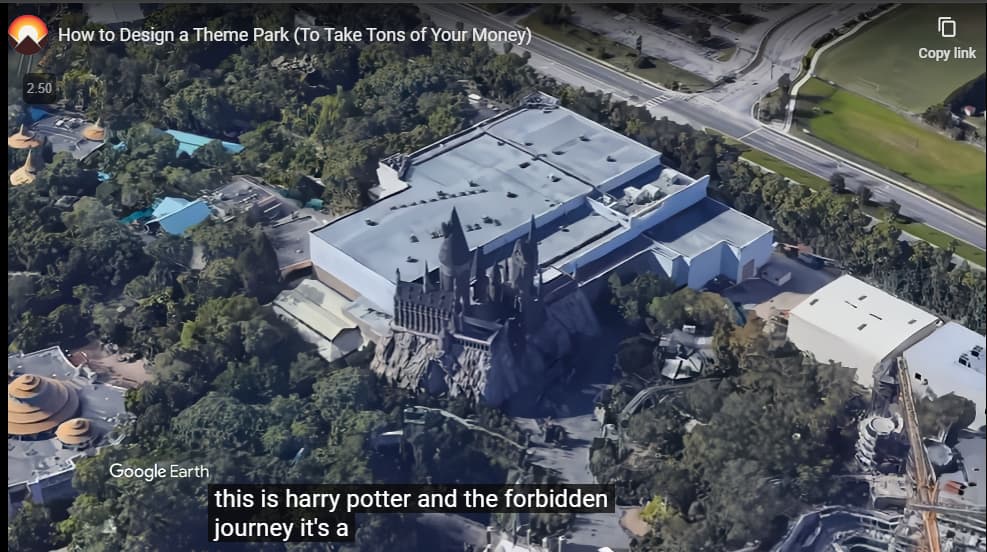
v1.6: Now, LingQ uses “youtube.com” player, not “youtube-nocookie.com”. Some code is updated for that change.
Also, now the videos you watch in LingQ show up in YouTube watch history (previously not). In other words, YT algorithm will consider the video played in LingQ.
LingQ automatically play the video, and auto-played video doesn’t counted as a view. So, not appear in YT history page.
Old Code
Script for YouTube Player
// ==UserScript==
// @name         Collapse More-videos
// @description  Automatically collapse More videos popup in YouTube.
// @match        https://www.youtube-nocookie.com/*
// @match        https://www.youtube.com/embed/*
// @version      1.6
// ==/UserScript==

(function () {
  "use strict";

  document.addEventListener('keydown', function(event) {
    const targetElement = event.target;

    // dismiss subtitle background opacity setting key (w)
    if (event.key === 'w') {
    console.log('w');
    event.preventDefault();
    event.stopPropagation();
    }
  }, true);

  function clickPlayButton() {
    document.querySelector(".ytp-button.ytp-large-play-button").click();
  }

  function clickCollapseButton() {
    document.querySelector(".ytp-button.ytp-collapse").click();
  }

  function clickSubtitleButton() {
    document.querySelector(".ytp-button.ytp-subtitles-button").click();
  }

  window.addEventListener("load", function () {
    setTimeout(() => {
      clickPlayButton();
      clickCollapseButton();
      clickPlayButton();
    }, 100);
  });

  var style = document.createElement("style");
  style.textContent = `
  div.ytp-pause-overlay{
    visibility: hidden !important;
  }
  a.ytp-watermark{
    visibility: hidden !important;
  }
`;

  document.querySelector("head").appendChild(style);
})();
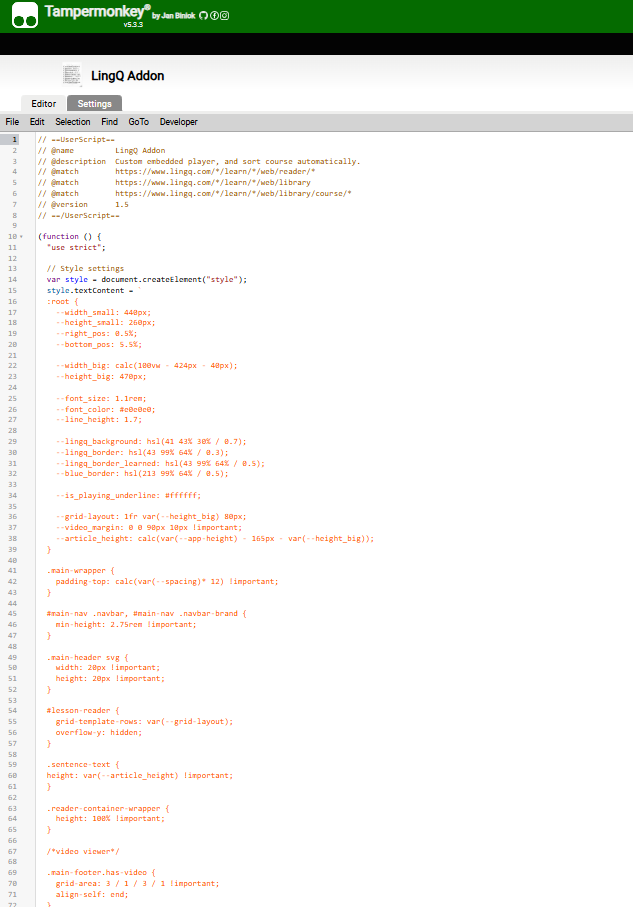
Script for LingQ website
// ==UserScript==
// @name         LingQ Addon
// @description  Custom embedded player, and sort course automatically.
// @match        https://www.lingq.com/*/learn/*/web/reader/*
// @match        https://www.lingq.com/*/learn/*/web/library
// @match        https://www.lingq.com/*/learn/*/web/library/course/*
// @version      1.6
// ==/UserScript==

(function () {
  "use strict";

  // Style settings
  var style = document.createElement("style");
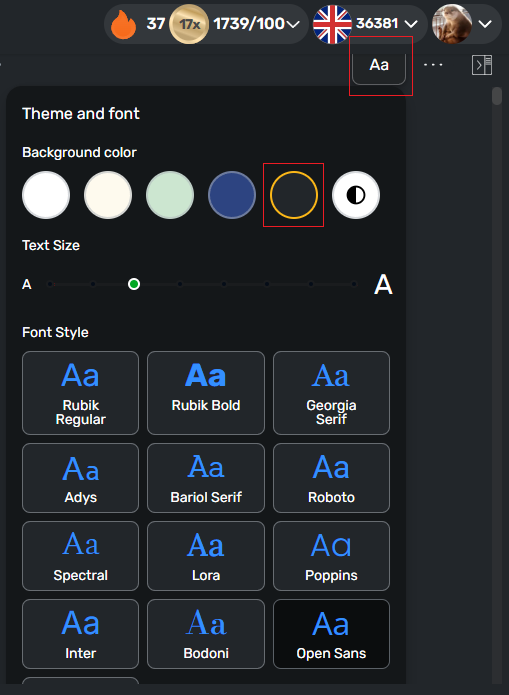
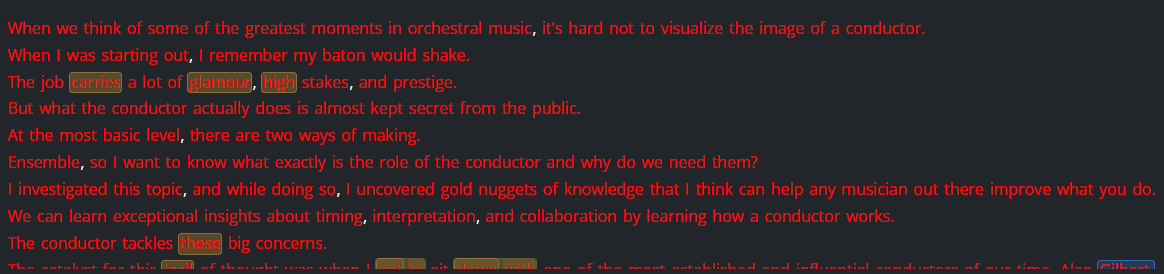
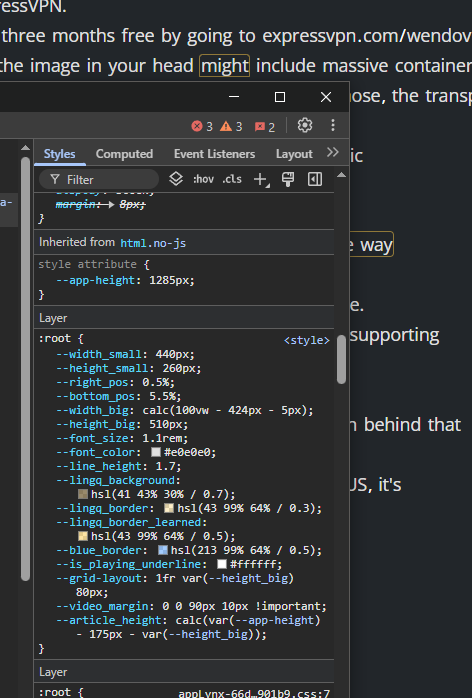
  style.textContent = `
  //PASTE THE CSS HERE
  `;
  document.querySelector("head").appendChild(style);

  // Add new shortcuts
  document.addEventListener('keydown', function(event) {
    const targetElement = event.target;
    const isTextInput = (targetElement.type === 'text' || targetElement.type === 'textarea');
    if (isTextInput) {
      return;
    }

    // video full screen toggle
    if (event.key === 'q' || event.key === 'Q') {
      const full_screen_btn = document.querySelector('.modal-section > div > button:nth-child(2)');
      if (full_screen_btn) {
        full_screen_btn.click();
      }
      event.preventDefault();
      event.stopPropagation();
    }

    // 5 sec Backward (Same as the 'Ctrl + ,')
    if (event.key === 'w') {
      const backward_btn = document.querySelector('.audio-player--controllers > div:nth-child(1) > a');
      if (backward_btn) {
        backward_btn.click();
      }
      event.preventDefault();
      event.stopPropagation();
    }

    // 5 sec Forward (Same as the 'Ctrl + .')
    if (event.key === 'e') {
      const forkward_btn = document.querySelector('.audio-player--controllers > div:nth-child(2) > a');
      if (forkward_btn) {
        forkward_btn.click();
      }
      event.preventDefault();
      event.stopPropagation();
    }

    // Make the selected word Known (Same as the 'k')
    if (event.key === 'r') {
      document.dispatchEvent(new KeyboardEvent('keydown', {key: 'k'}));
      event.preventDefault();
      event.stopPropagation();
    }

    // Move cursor to the reference input
    if (event.key === '`') {
      const reference_input = document.querySelector('.reference-input-text');

      if (reference_input) {
          reference_input.focus();
          reference_input.setSelectionRange(reference_input.value.length, reference_input.value.length);
      }
      event.preventDefault();
      event.stopPropagation();
    }

    // Open Dictionary
    if (event.key === 'd' || event.key === 'f') {
      const dict_btn = document.querySelector('.dictionary-resources > a:nth-child(1)');
      if (dict_btn) {
        dict_btn.click();
      }
      event.preventDefault();
      event.stopPropagation();
    }

    // Open Translator
    if (event.key === 't') {
      const translator_btn = document.querySelector('.dictionary-resources > a:nth-last-child(1)');
      if (translator_btn) {
        translator_btn.click();
      }
      event.preventDefault();
      event.stopPropagation();
    }

    // Copy selected text
    if (event.key === 'c') {
      const selected_text = document.querySelector('.reference-word');
      if (selected_text) {
        navigator.clipboard.writeText(selected_text.textContent);
      }
      event.preventDefault();
      event.stopPropagation();
    }

  });


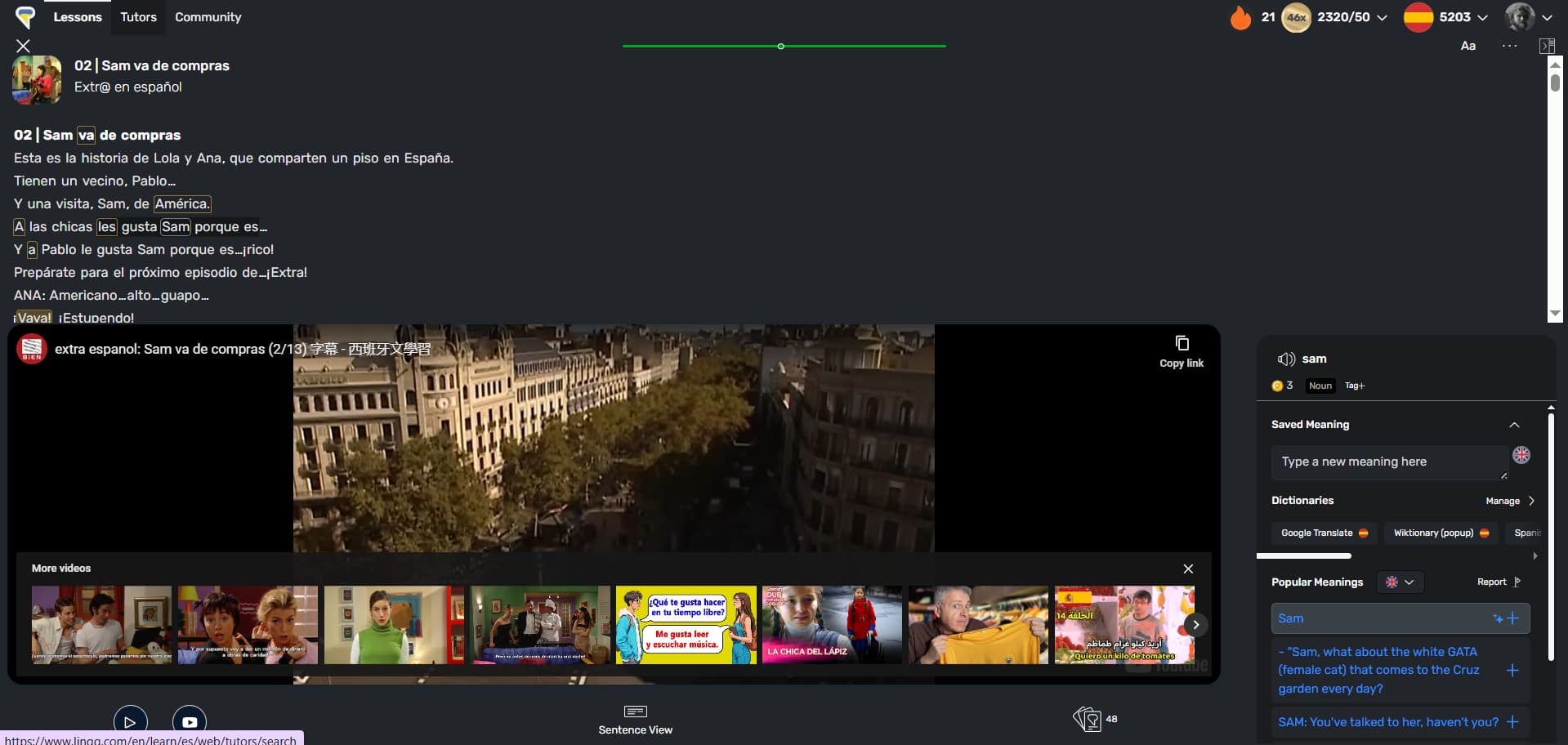
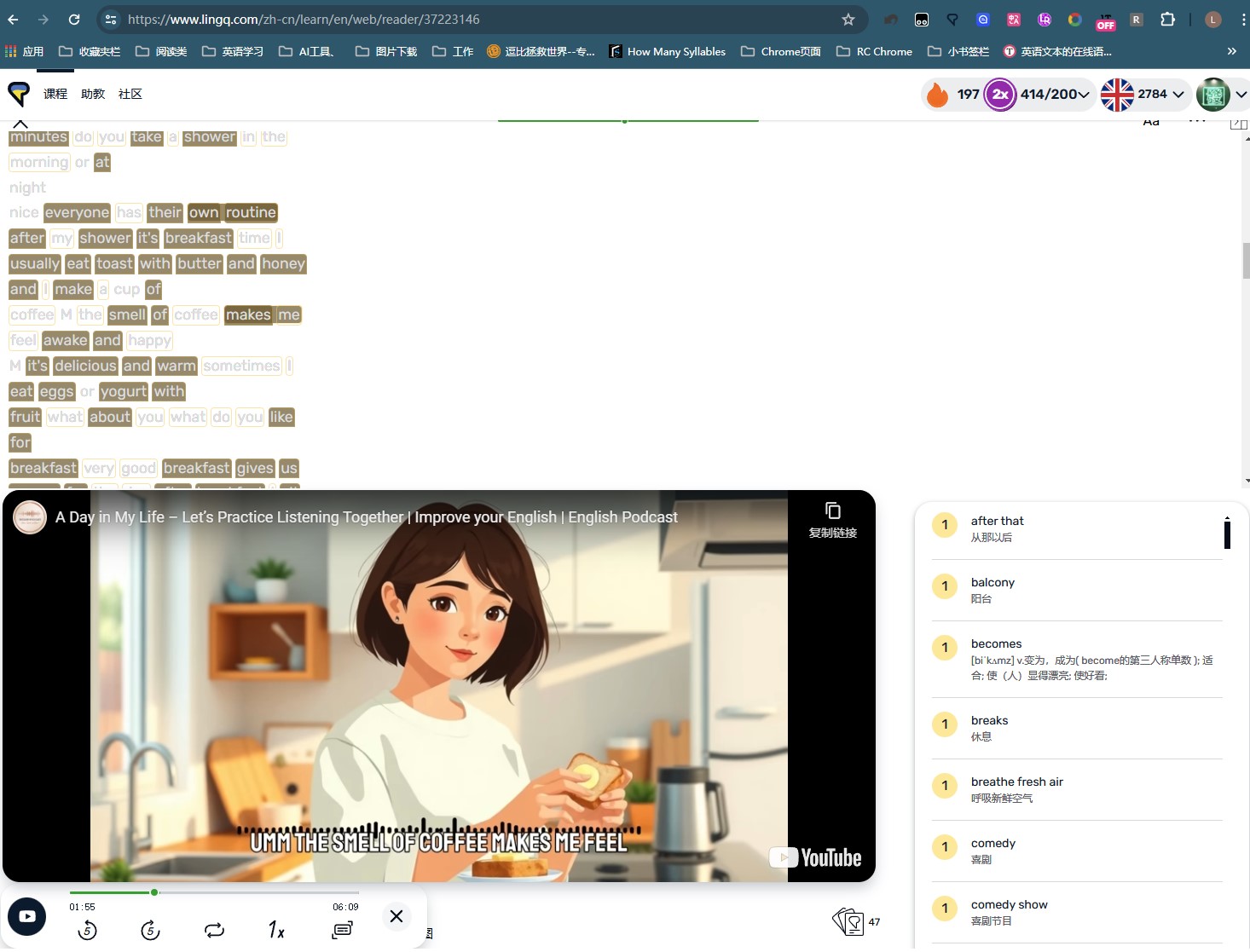
  // Custom embedded player
  function replaceNoCookie() {
    document.querySelectorAll('iframe').forEach(function(iframe) {
        let src = iframe.getAttribute('src');

        if (src && src.includes('disablekb=1')) {
            // src = src.replace('autoplay=0', 'autoplay=1'); // video will automatically start to play.
            src = src.replace('disablekb=1', 'disablekb=0'); // keyboard controls are enabled.
            src = src + '&cc_load_policy=1' // caption is shown by default.
            src = src + '&controls=0' // player controls do not display in the player.
            iframe.setAttribute('src', src);
            console.log(src);
        }
    });
  }

  const iframeObserver = new MutationObserver(function(mutationsList, observer) {
      for (const mutation of mutationsList) {
          if (mutation.type === 'childList' && mutation.addedNodes.length > 0) {
              mutation.addedNodes.forEach(node => {
                  if (node.nodeName === 'IFRAME') {
                      replaceNoCookie();
                  } else if (node.querySelectorAll) {
                      node.querySelectorAll('iframe').forEach(replaceNoCookie);
                  }
              });
          } else if (mutation.type === 'attributes' && mutation.attributeName === 'src' && mutation.target.nodeName === 'IFRAME') {
              replaceNoCookie();
          }
      }
  });

  if (document.URL.includes("/reader/")) {
    iframeObserver.observe(document.body, { childList: true, subtree: true, attributes: true, attributeFilter: ['src'] });
  }


  // Change the amount of a scroll
  setTimeout(() => {
    console.log('scroll event!');
    const myDiv = document.querySelector('.reader-container');
    myDiv.addEventListener('wheel', (event) => {
      event.preventDefault();
      const delta = event.deltaY;
      const scrollAmount = 0.3;
      myDiv.scrollTop += delta * scrollAmount;
    });
  }, 3000);


  // Focus on playing sentence
  function focusPlayingSentence() {
    const playingSentence = document.querySelector('.sentence.is-playing');

    if (playingSentence) {
    playingSentence.scrollIntoView({behavior: 'smooth', block: 'center'});
    }
  }

  const observer = new MutationObserver(mutations => {
    mutations.forEach(mutation => {
    if (mutation.type === 'attributes' && mutation.attributeName === 'class' && mutation.target.classList.contains('sentence')) {
      focusPlayingSentence();
    }
    });
  });

  const container = document.querySelector('.sentence-text');
  if (container) {
  	console.log('observer setted!')
    observer.observe(container, { attributes: true, subtree: true });
  }


  // Sort courses
  function addClickListener() {
    document.querySelectorAll("div.library-item-wrap").forEach((item) => {
      if (!item.dataset.listenerAdded) {
        item.addEventListener("click", function () {
          setTimeout(() => {
            /* Change the number in .dropdown-item:nth-child(3) by your preference
               1: All lessons
               2: Oldest to Newest
               3: Newest to Oldest
               4: Last Opened
               5: New Words %
               6: A-Z */
            document.querySelector(
              ".library-item--menu-box .collection-section--controllers .dropdown-item:nth-child(5)"
            ).click();
          }, 1000);
        });
        item.dataset.listenerAdded = true;
      }
    });
  }

  const libraryObserver = new MutationObserver(addClickListener);
  if (document.URL.includes("/library")) {
    libraryObserver.observe(document.body, { childList: true, subtree: true });
    addClickListener();
  }

  if (document.URL.includes("/library/course/")) {
    setTimeout(() => {
      document.querySelector(
        ".library-sections--item .dropdown-content .dropdown-item:nth-child(5)"
      ).click();
    }, 2000);
  }
})();

Looking for in-depth documentation?


 Settings.