. Directed by .
ROBERT B. WEIDE
You can do this for all words in the Vocabulary section.
O.K., thanks. It was somewhat annoying but I have managed to fix this issue.
Use 'DARK MODE. Use ‘FOREGROUND’ in the reader settings and it looks much better. It will at least give you the patience to explore the new set up without being dazzled. Increased text size also helps a lot. It does look pretty good in dark mode. Much easier and pleasing to the eye. :0)
message of user virgilinojuca:
I tweaked with a userstyle to make the sidebar use more vertical space. I didn’t test it a lot yet, though.
It’s supposed to look something like this:
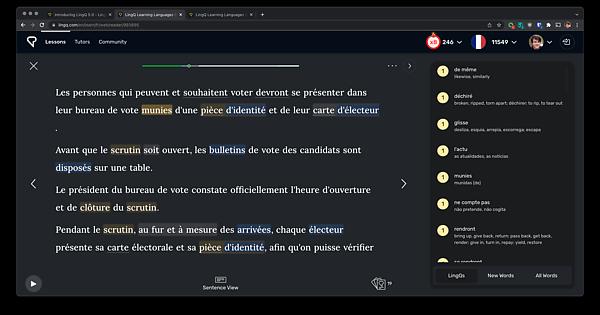
This is how, in my opinion, LingQ should have designed the new reading screen.
It can be installed by creating a userstyle with a browser extension such as Stylus, pasting the code available on the link below, and setting the style to apply to lingq.com.
The code:
User ColinJohnstonov also made an userstyle for another purpose and explains in his topic how to install it:
Now I published the userstyle in LingQ 5.0 more compact sidebar — UserStyles.world
try this
message of user virgilinojuca:
I tweaked with a userstyle to make the sidebar use more vertical space. I didn’t test it a lot yet, though.
It’s supposed to look something like this:
This is how, in my opinion, LingQ should have designed the new reading screen.
It can be installed by creating a userstyle with a browser extension such as Stylus, pasting the code available on the link below, and setting the style to apply to lingq.com.
The code:
User ColinJohnstonov also made an userstyle for another purpose and explains in his topic how to install it:
Now I published the userstyle in LingQ 5.0 more compact sidebar — UserStyles.world
message of user virgilinojuca:
I tweaked with a userstyle to make the sidebar use more vertical space. I didn’t test it a lot yet, though.
It’s supposed to look something like this:
This is how, in my opinion, LingQ should have designed the new reading screen.
It can be installed by creating a userstyle with a browser extension such as Stylus, pasting the code available on the link below, and setting the style to apply to lingq.com.
The code:
User ColinJohnstonov also made an userstyle for another purpose and explains in his topic how to install it:
Now I published the userstyle in LingQ 5.0 more compact sidebar — UserStyles.world
message of user virgilinojuca:
I tweaked with a userstyle to make the sidebar use more vertical space. I didn’t test it a lot yet, though.
It’s supposed to look something like this:
This is how, in my opinion, LingQ should have designed the new reading screen.
It can be installed by creating a userstyle with a browser extension such as Stylus, pasting the code available on the link below, and setting the style to apply to lingq.com.
The code:
User ColinJohnstonov also made an userstyle for another purpose and explains in his topic how to install it:
Now I published the userstyle in LingQ 5.0 more compact sidebar — UserStyles.world
Please Mark, notice that the sidebar is also not only shorter but strangely narrow. Many other buttons like the arrow to move from page to page (which has to be clicked on just once every page, by definition) are a lot bigger than the sidebar (which may have to be clicked on many times per page).
The more times you need to click on something (like the sidebar), the more useful it is to make it bigger.
Thanks for taking it into consideration.
With this new version, what happened to the audio when you import a video from youtube? On the previous version, it showed the audio and video options/buttons … but it seems that with the 5.0 it doesn’t have the audio version anymore, just the video, which i can read along listen to the video. Am I doing something wrong? If someone can help me, i’d appreciate
We are always looking for ways to improve Japanese timestamps, but of course it is quite difficult. We keep up to date with the best methods but it’s an issue everyone has with that particular language.
Can you guys put the old layout system of LingQ as an option ?
- We’ll see if we can add a setting for that at some point but I recommend adding a new playlist and manually adding lessons to it if you prefer to control which lessons are added. The Active Playlist is automatic for everyone but you can just ignore it.
2, 3, 4 Thanks. We’ll look into those issues.
There seems to be a bug with pinyin (Chinese) in the android app: when you switch it off (so that it does not appear above the characters) unfortunately, when you look up a word, it also shows no pinyin. Please fix this.
Thanks, we’ll take a look at that!
Can you post a screenshot of what you are seeing. The sidebar isn’t narrow that I’ve seen.
The audio should be there too. It may have been hung up. We’ll look into it.
Very exciting! Thank you all. Lingq was good before. Now it’s better. Regards, Peter
Seriously? Viewing the text in its entirety is inextricably bound to playing audio? “Play” button can’t be toggled to a “View” button if there’s no audio? (Once in “full-screen play mode”, one can close the audio control thereby leaving a silent “whole text” view - so it seems no new view to “build, design and maintain” is needed.)
Dark mode is sehr gut!