@Fer.weh Thanks for suggesting a completion indicator for reviews, we will look into this.
I think editing a word within the review widget would require a further button to be added, and we want to keep this area simple and clean for the majority of users unlikely to need to edit words. They always have the vocabulary page if they decide to do so.
And thanks for reporting the superfluous review buttons as well.
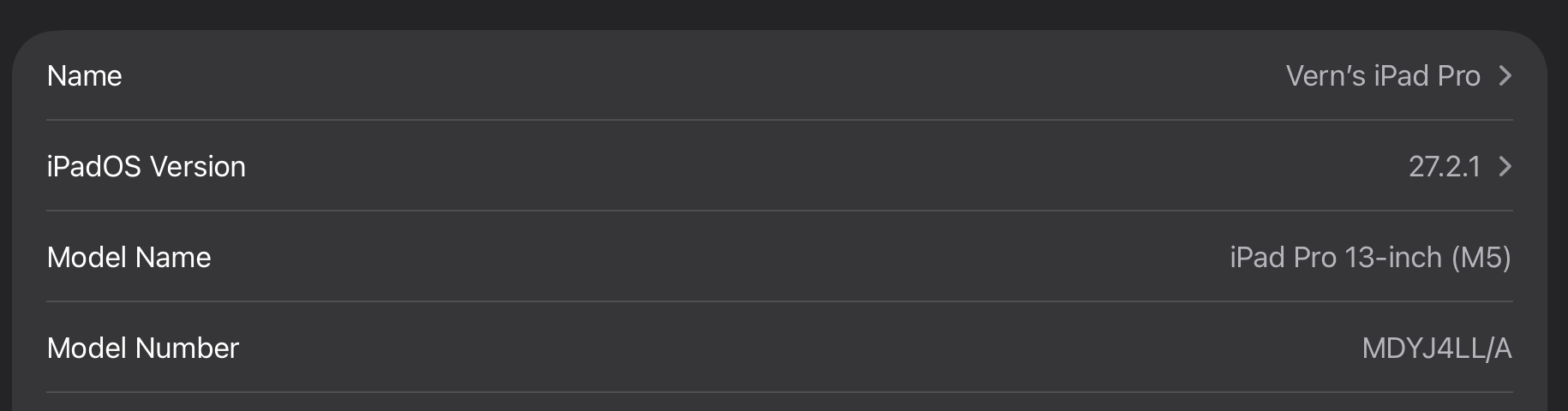
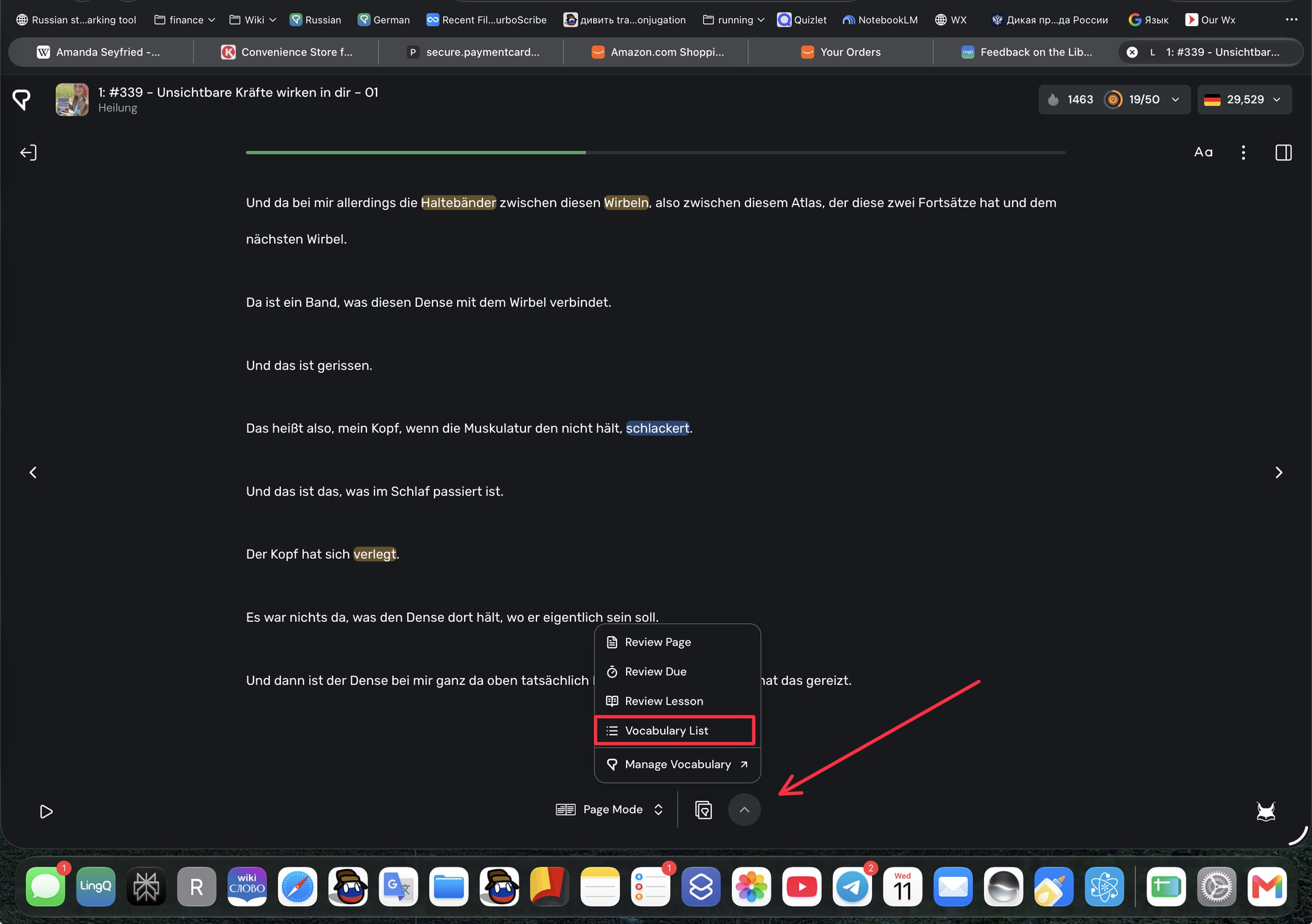
@vernmartin Could you provide the exact version and platform you are using, as well as where you are accessing the vocabulary list from? A step by step guide would help.
The Enter key still works normally on regular single words and saves the definition as expected. However, it breaks on split/group words (multi-word phrases treated as one unit).
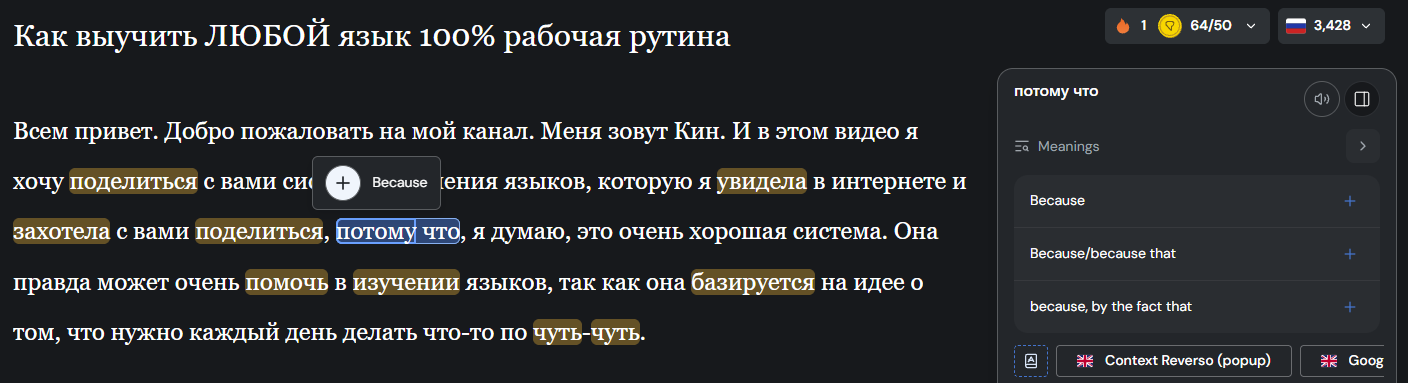
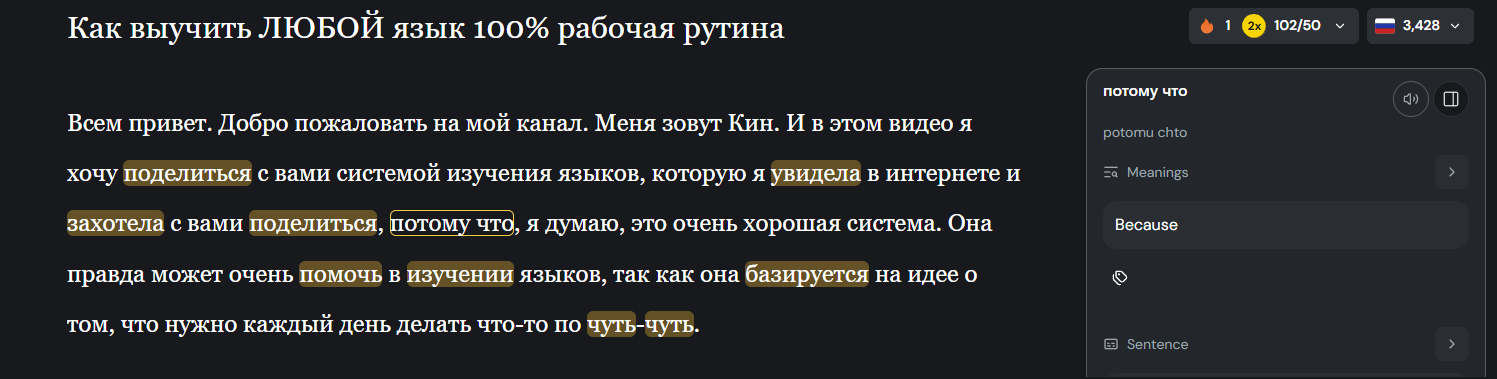
For example, with “потому что” (and similar two-word-as-one phrases in Russian), Enter no longer works. You have to click the phrase, then manually add the definition. It also doesn’t properly highlight the phrase in yellow after saving the way it should.
This breaks the keyboard-only “word hopping” workflow that Chytran uses (and that LingQ has written about before: How Long Does It Take to Learn Mandarin? A 10,000-Hour Story). The method relies on arrow keys to jump between blue/yellow words and then hitting Enter (or K, 1, 2, 3, X) without touching the mouse.
Would be good if Enter worked as a quick save on these multi-word phrases as well, the same way it does on regular words.
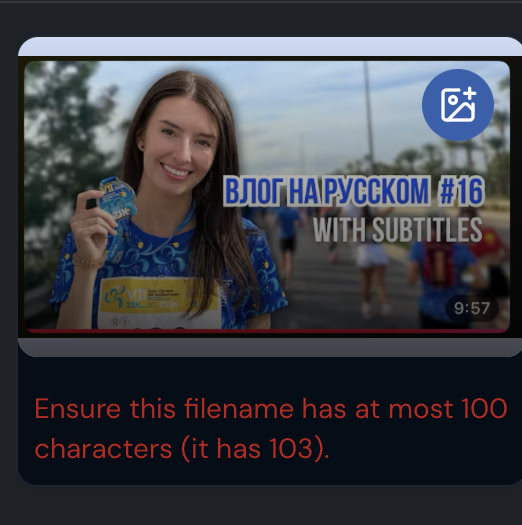
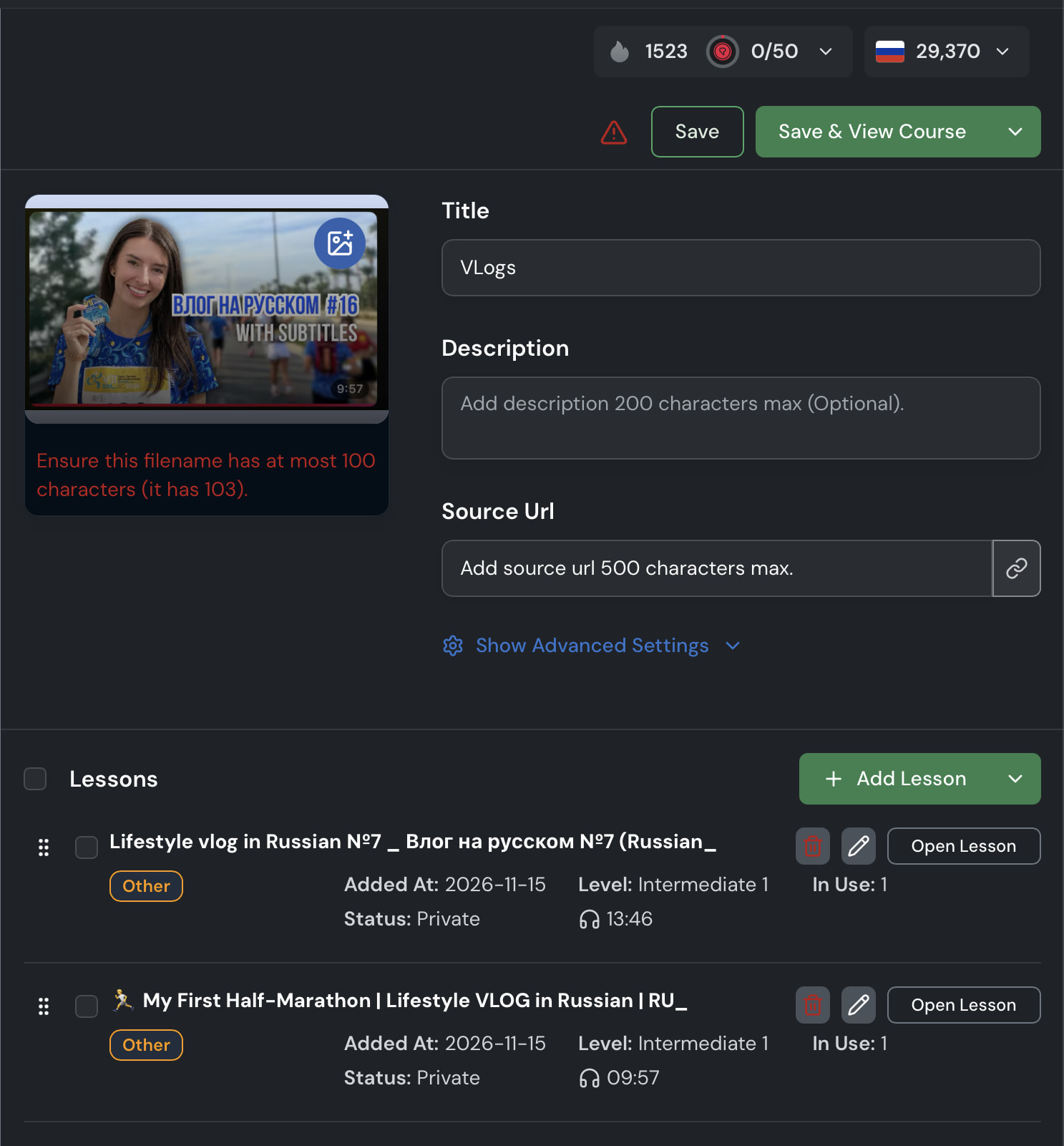
On the one hand, I love the message. It makes it easy to diagnose the issue. On the other hand, why does the program care? Why should I as a user have to care about the length of the file name? The file names for the audio and transcript are even longer (shown below in a screenshot). They were imported and lessons created without error. AND: that same image was imported along with its audio and transcript while the lessons were created.
I am SO HAPPY that these days, I don’t have to adjust the names of the other files. In the case of the lesson thumbnail, please just do whatever you want to with the length of the file name upon upload.
@ZayaFTW Testing today, on web in the beta, I can use the right/left arrows to move to the next word/phrase, use the up/down arrows to select a meaning, and use Enter to save that meaning. This works equally for individual blue words and for blue phrases.
Did you mean that needing to cycle through meanings via the up and down arrows is “manually adding” the definition?
@vernmartin Thanks for noting the file name limit, we will fix this.
I’m guessing that what @Fer.weh means is that “1 Day Streak” is mistranslated to “1 New Word”. To be consistent with the English version it should perhaps be “1 Tag in Folge 0/50 Münzen” although a Native German speaker could perhaps give some other translation.
For most of the languages that I study I see that text on top of the Library, the Community and in lessons. These are screenshots of today:
And these are different:
[Edit: I posted the 2nd part of the post in the thread for the beta reader.]
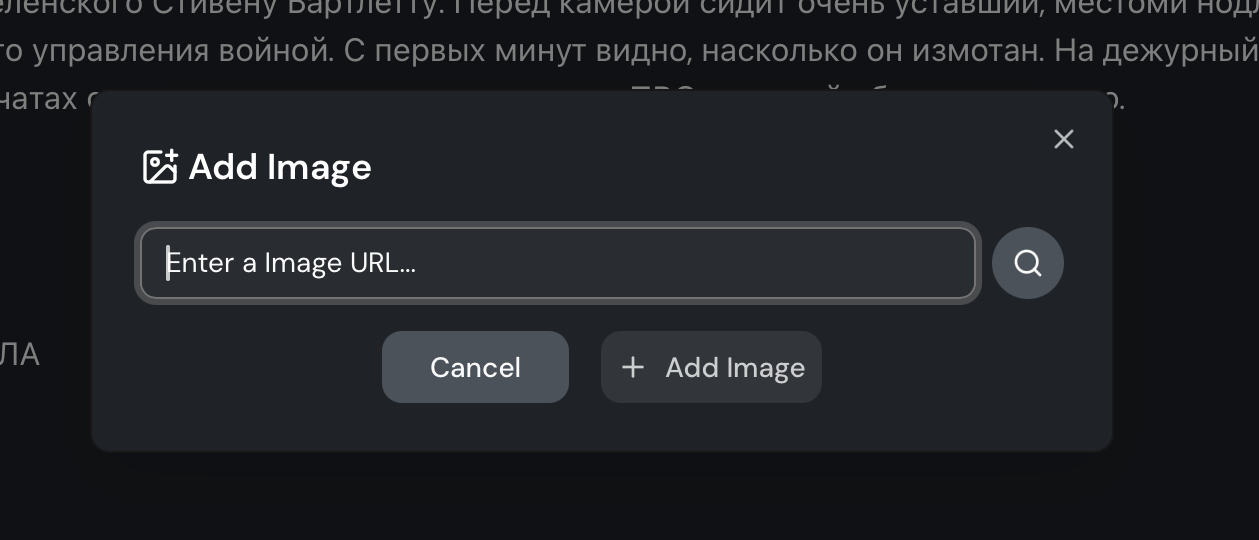
How are images to be added when creating a lesson by typing or pasting text?
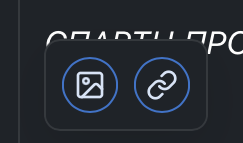
I see a button appear while adding text to a new lesson. The two buttons appear the left one seems to represent a way to add and image to the lesson, and when I click on it I see the prompt below for a URL. Is a publicly available link the only way to add an image?
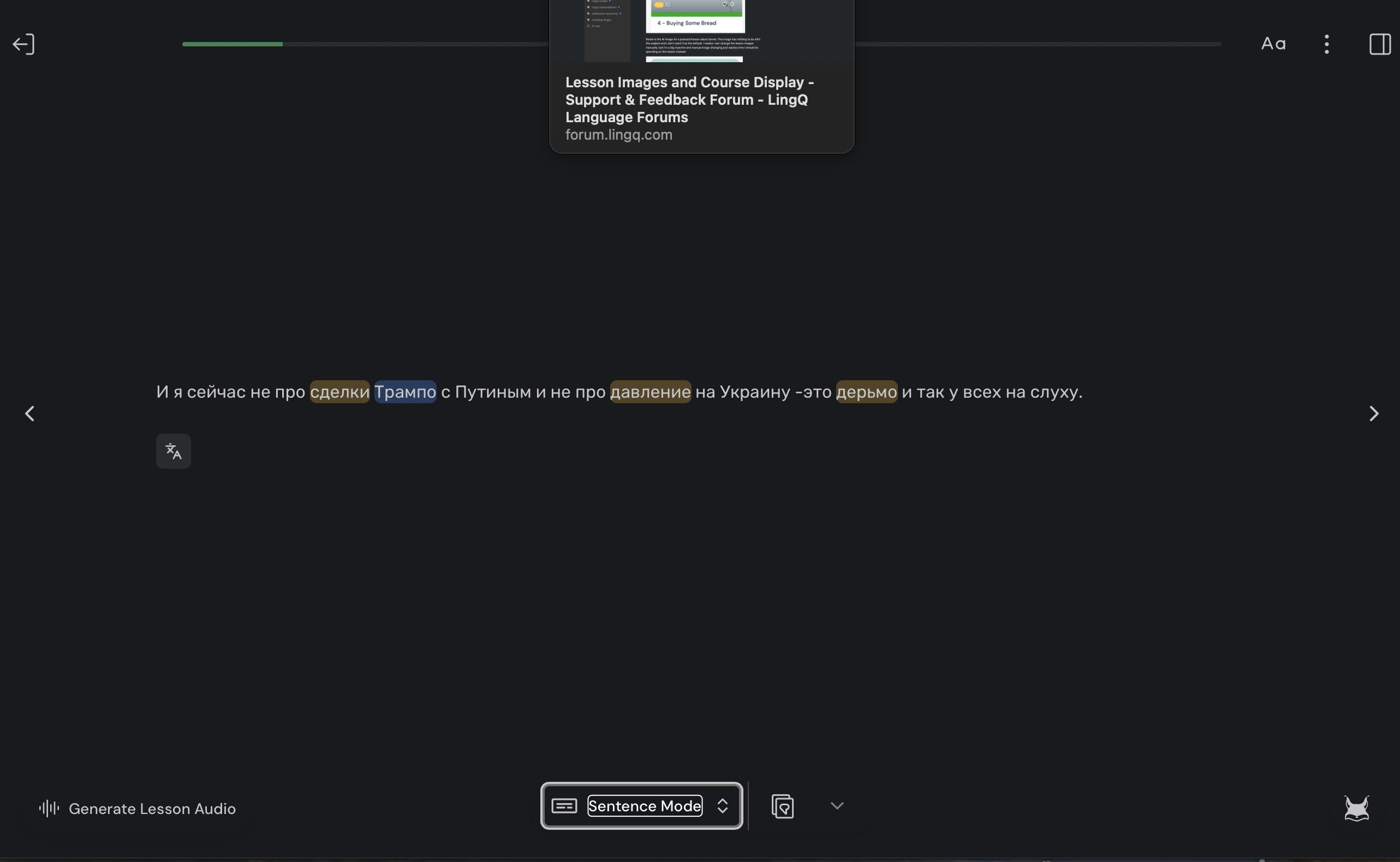
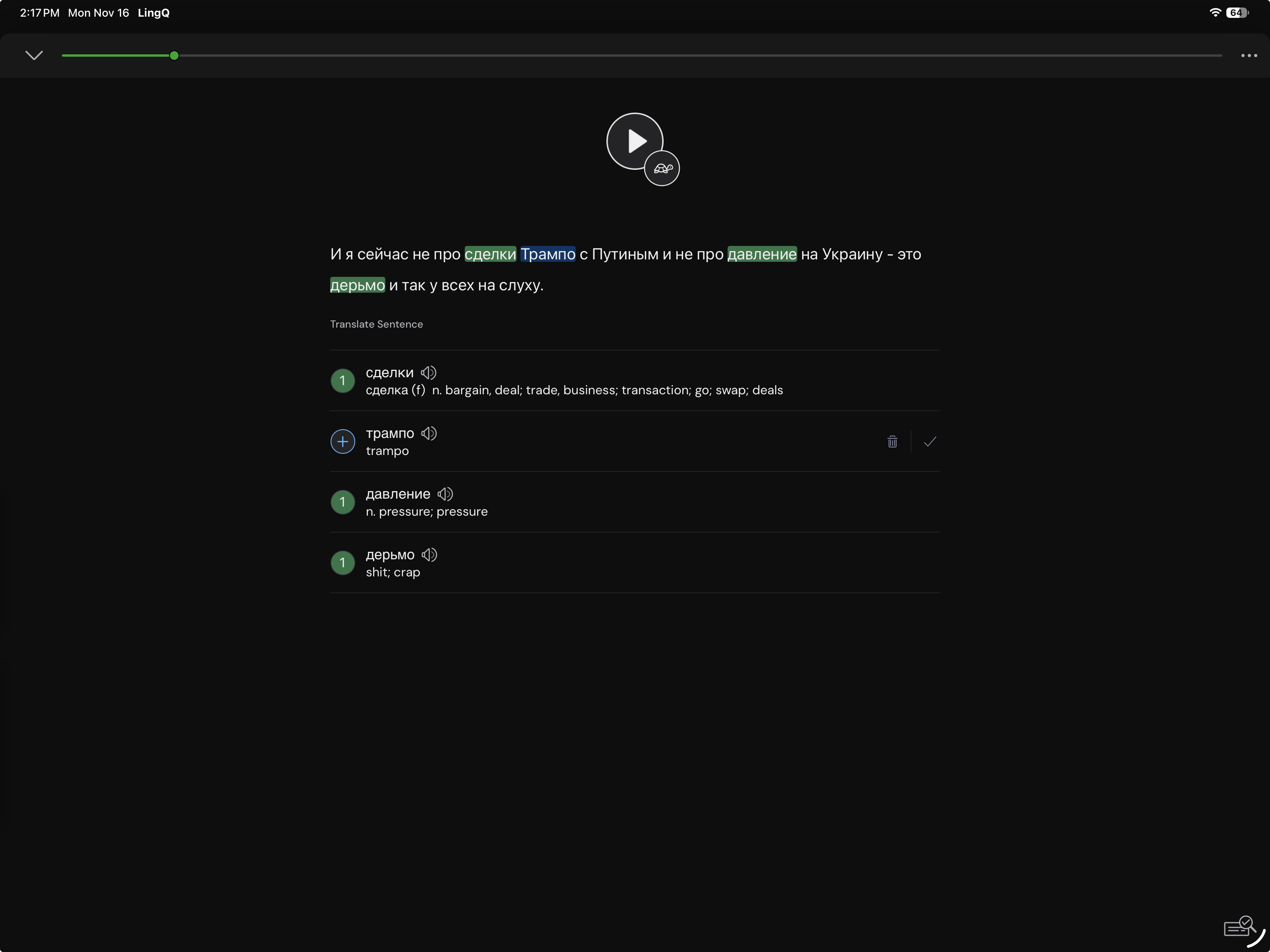
All I seem to see is a single sentence much like I would see if I were reading the entire page, but just one sentence. Unfortunately, that’s a lot less than I want to see in sentence mode. Below is another screenshot of sentence mode in the mobile app on my iPad. Much more useful – or am I just missing something here?
I didn’t test it thoroughly enough. Most of the functions do work, but the first definition is no longer automatically selected/highlighted like it used to be. Before, you could just hit Enter to quickly save the top definition if it looked right. Now you have to use the up/down arrows to cycle through and select one first, which adds extra steps and breaks the flow for the kind of fast, immersive LingQing Chytran does.
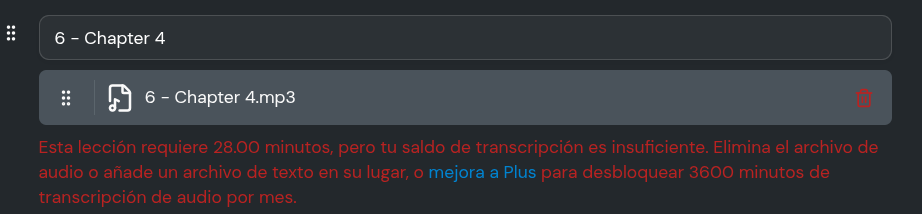
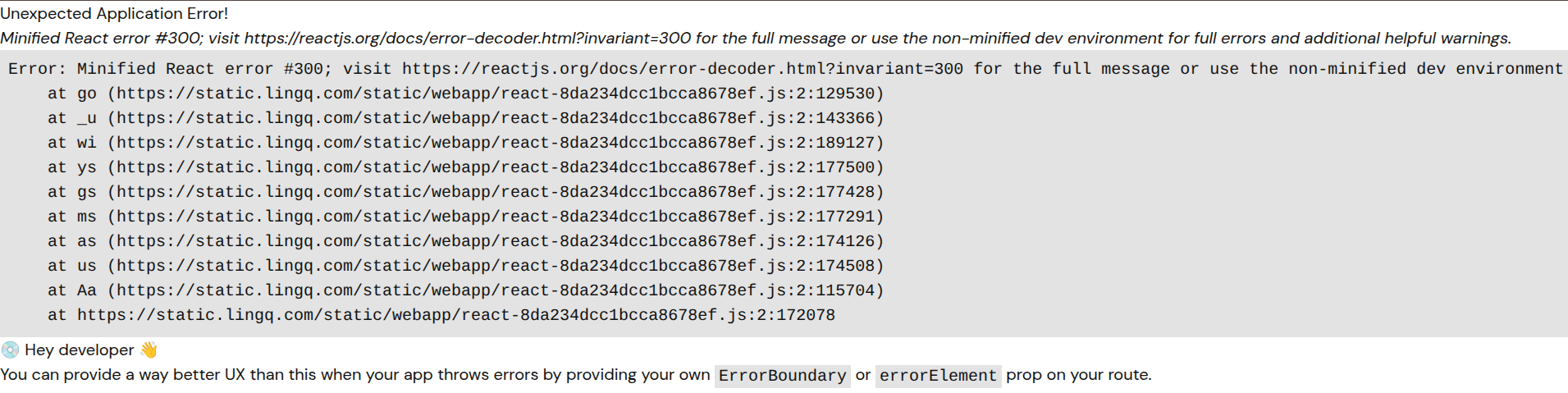
There is an issue with creating lessons from audio in bulk when you don’t have enough transcription minutes left. If I try to remove the extra audio file by clicking on the trashcan icon I get this error.
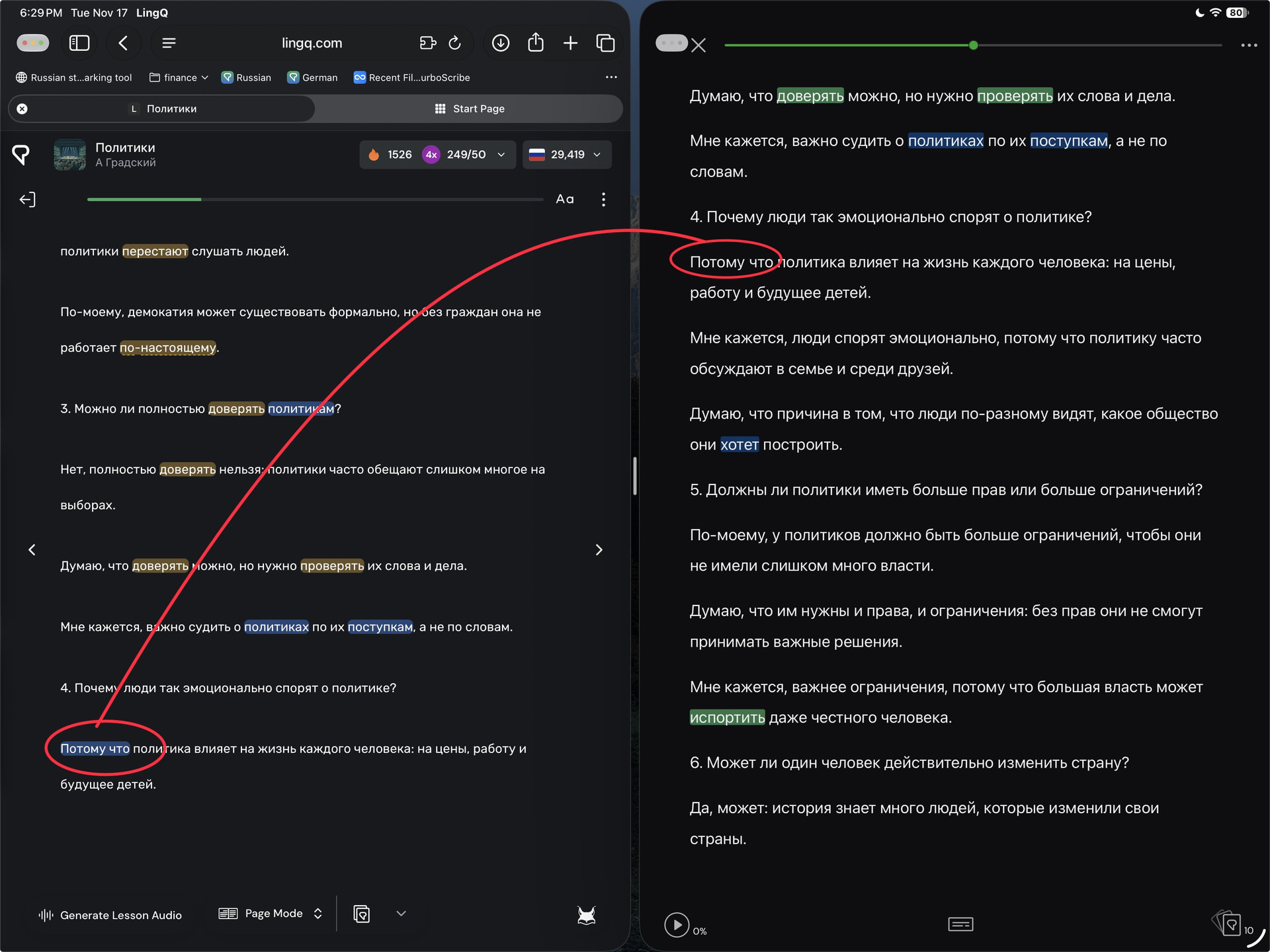
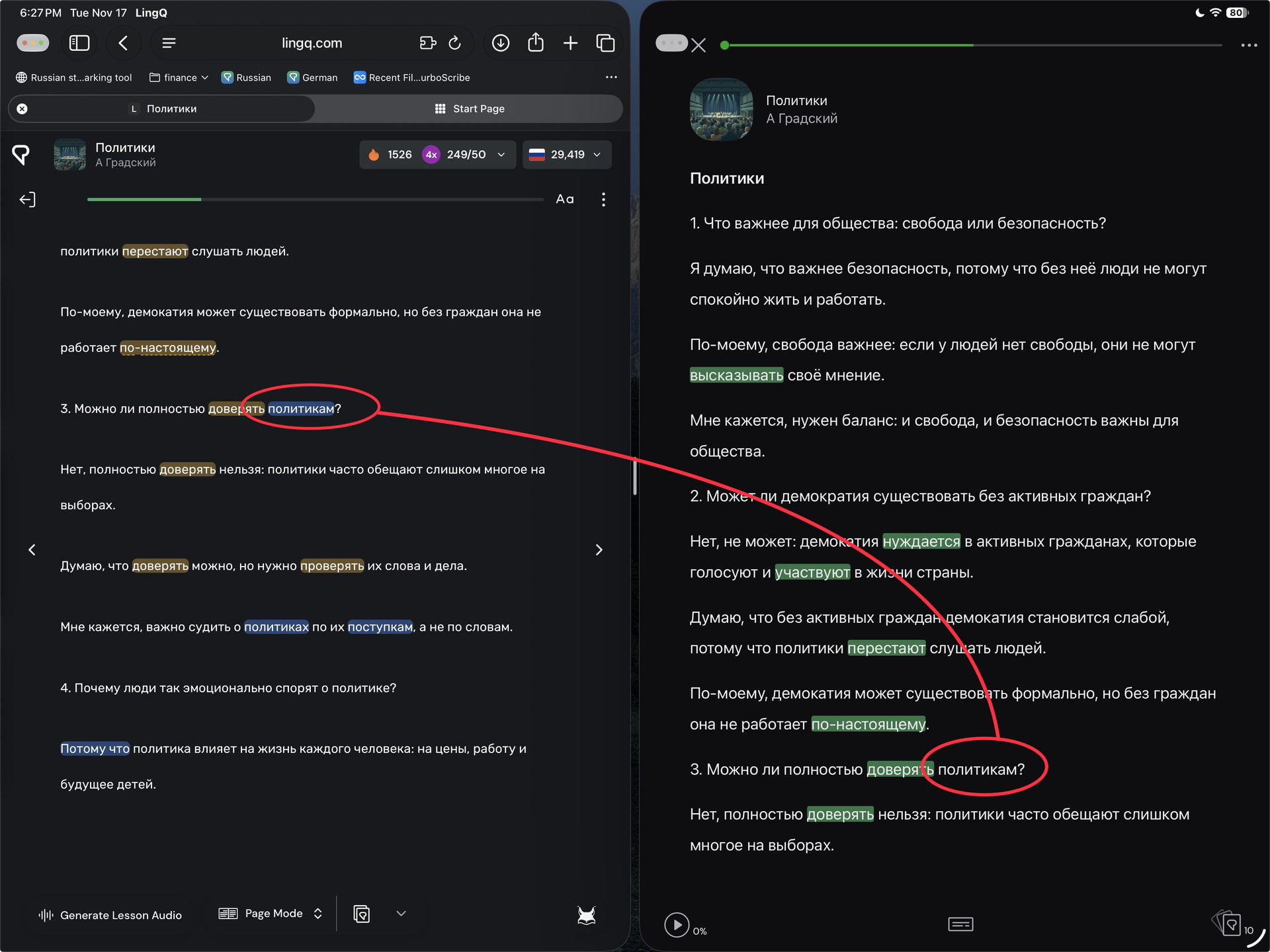
I created a new lesson from plain text pasted into the new lesson. Nothing fancy. I happened to notice some discrepancies between marked words in the web reader vs the iPad LingQ app reader. I marked the discrepancies in the following screenshots. At the end, It’s a very small lesson, and the discrepancies are curious.
@yanayy Thanks for that bug report, we will find out what’s going on!
@vernmartin Thanks for noting this, we will look into differences in how the clients handle moving phrases to known.
To everyone else seeing this thread - We are planning to launch the Web and iOS v7 update on Monday, the 23rd, so the more you can report the better it will be for launch. We appreciate every post you make!