What is Lynx AI in LingQ?
Overview
Lynx AI is your AI language coach that helps you practice your target language, understand tricky points, and get guidance on how to use LingQ more effectively – all inside the app.
You can have free-form conversations, ask questions about language or features, get study advice, and even receive content suggestions without leaving LingQ. Lynx is available on web and mobile as a chat interface where you type (or use voice-to-text) and see AI replies in a familiar messaging layout.
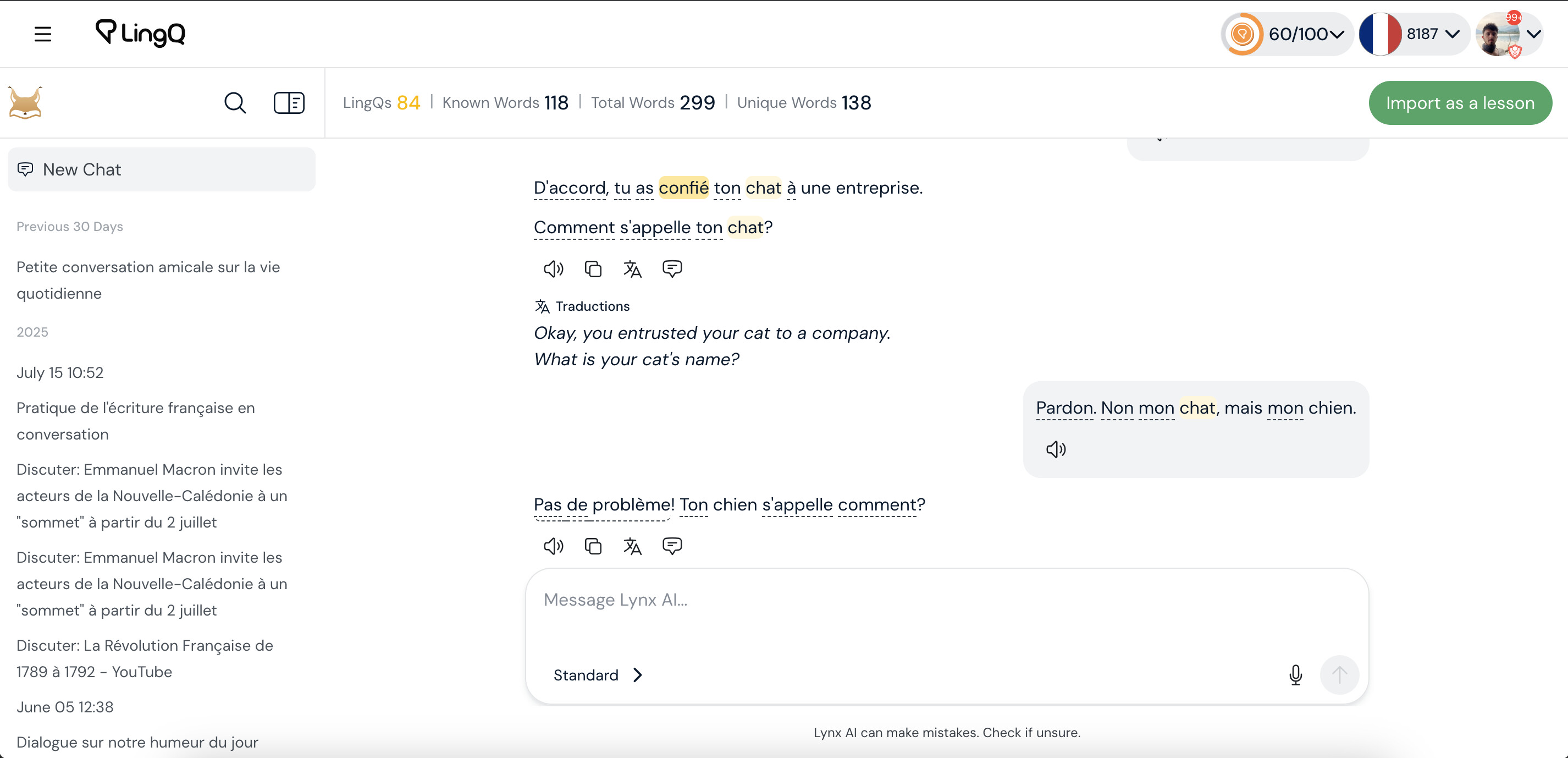
Lynx AI chat interface on the web app.
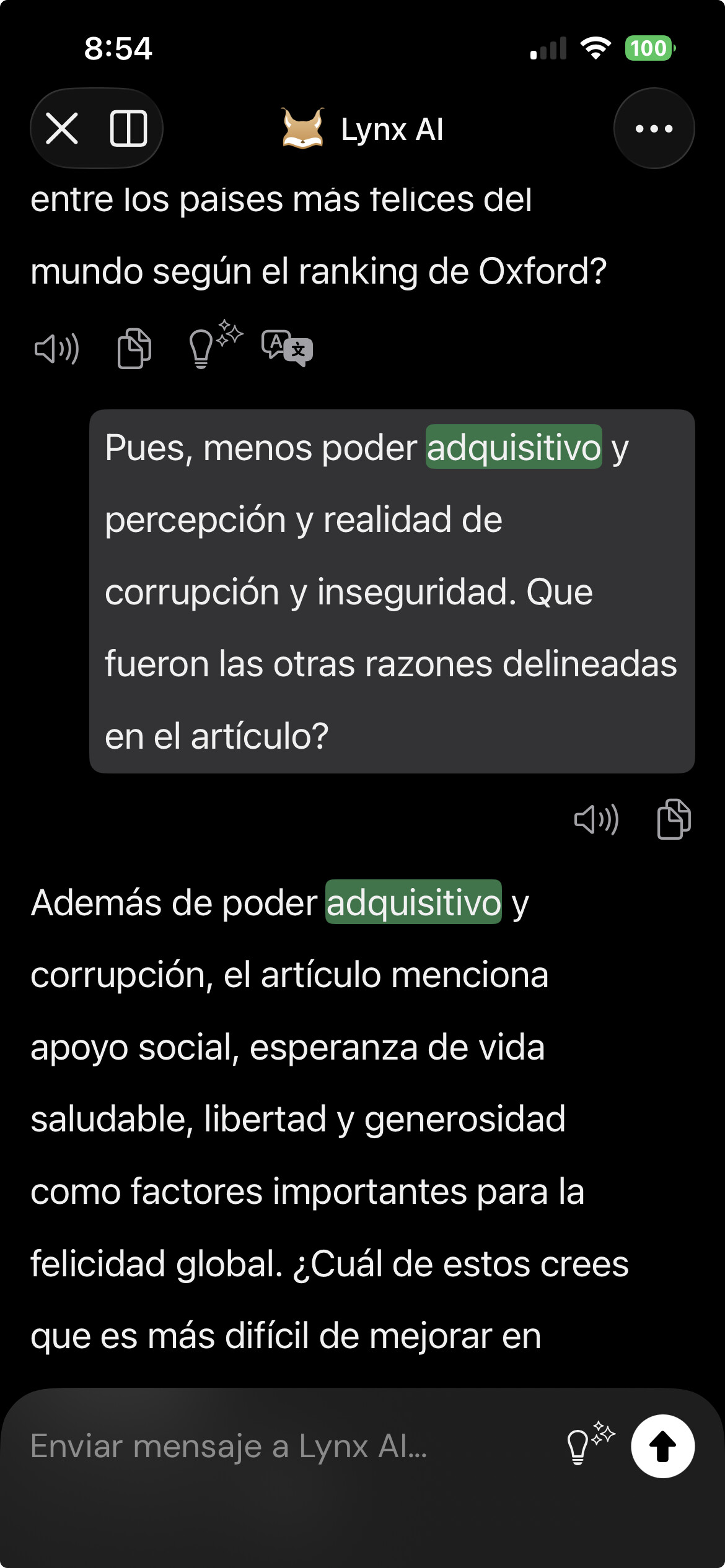
Lynx AI chat interface in the mobile app.
How Lynx fits into your learning
Lynx is meant to sit alongside everything you already do in LingQ, not just lessons you’re reading right now. You can use it to:
- Practice free-form conversation in your target language about any topic (your day, hobbies, travel, news, and more).
- Ask for help with words, phrases, and grammar patterns you encounter anywhere – in LingQ lessons or outside LingQ.
- Get suggestions on how to use LingQ features and structure your study routine.
Because Lynx is integrated with LingQ, you can also tap or click new words and phrases in Lynx’s replies to save them as LingQs. These saved LingQs are added directly to your vocabulary database.

Saving a word from a Lynx message as a LingQ.
Words saved from Lynx are highlighted in future lessons and included in your regular review activities, just like LingQs created directly in the Reader. If you need help understanding a reply, you can use available translation controls to quickly see the meaning in your native language, then go back to using the target language as much as possible.
What Lynx can help you with
Across its modes, Lynx can support four main areas:
- Conversation practice: chat in your target language in a low-pressure way and get gentle corrections on bigger mistakes so you improve without stopping the flow.
- Understanding the language: ask about vocabulary, expressions, grammar, or example sentences and get short, focused explanations rather than long essays, plus useful example phrases in some modes.
- Using LingQ effectively (Premium Plus modes): ask how to use specific LingQ features, how the method works, or how to structure your routine. Lynx can draw on LingQ’s help documentation to explain features and pedagogy in context.
- Content and study guidance (Premium Plus modes): get recommendations for lessons and collections in the LingQ Library, have Lynx create new text-based lessons for you, and receive suggestions based on your learning statistics.
You don’t need to be in a specific lesson to use Lynx. You can simply open the chat, start talking in your target language, and let Lynx connect the conversation to your LingQ account, content, and stats as needed.
Where you can use Lynx
You’ll see Lynx in two main places:
- Lynx chat screen (web and mobile): open the Lynx AI chat screen from the app navigation to start or continue a conversation in your target language.
- (COMING SOON) Coach feedback after lessons: when you complete a lesson in the LingQ Reader, you will see short AI feedback from Lynx Coach, giving you a quick observation or suggestion based on how you’re studying.
In the chat interface you can type messages or use your device’s voice-to-text to “speak” to Lynx, save useful new words from Lynx replies as LingQs, and use translation controls on replies when you need a quick explanation in your native language.

Lynx AI entry point in the LingQ navigation.
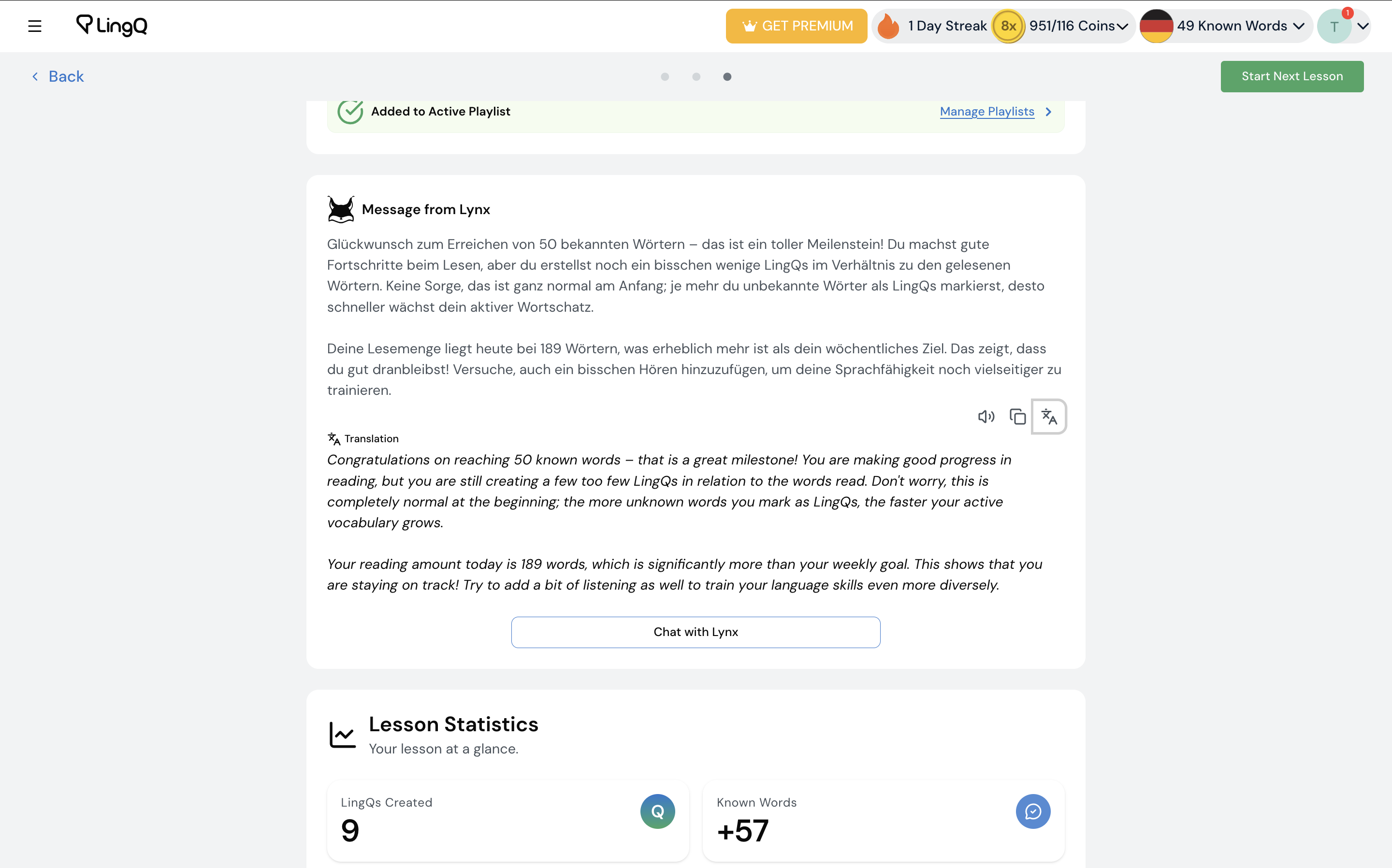
Coach feedback shown after completing a lesson.
Lynx modes
Lynx has several modes that change how it behaves and what it can access. Standard and Coach are available to all Premium and Premium Plus members. Plus and Tutor are available only on Premium Plus.
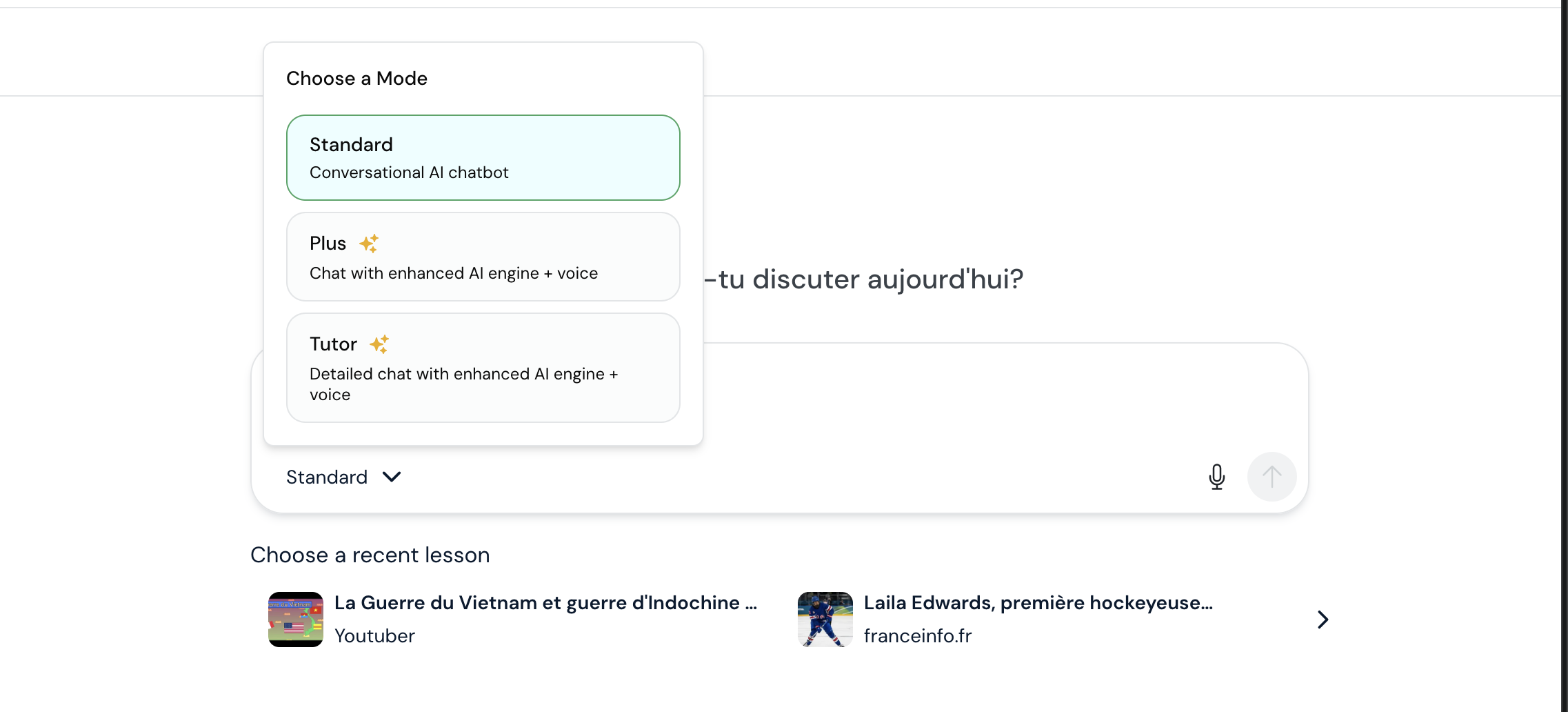
Lynx mode options available in the interface.
Standard mode (Premium & Premium Plus)
Standard is the default conversational mode for most users.
- Chats mainly in your target language, using your native language briefly only when you’re stuck, then switching back.
- Corrects bigger errors so you improve while keeping the conversation natural.
- Keeps replies short (under two sentences) so it’s easy to practice in small chunks.
- Always uses correct spelling, even if you don’t.
Use Standard for quick, everyday practice and simple questions.
Coach mode (Premium & Premium Plus)
Coach provides short, personalized feedback based on how you’ve been using LingQ.
- Shows a single, brief paragraph of advice or encouragement, often after lessons or key milestones.
- Focuses on one clear suggestion at a time instead of long, multi-step plans.
- Reacts to patterns in your activity (for example: little listening, very few or very many LingQs, big bursts with long gaps, or hitting known-word/LingQ milestones).
- Often just celebrates progress rather than telling you to change anything.
Coach is meant to gently nudge you and celebrate wins, not to overwhelm you with rules.
Plus mode (Premium Plus only)
Plus mode extends Standard with more tools and context from your LingQ account and the web.
- Keeps the same short, friendly conversational style as Standard (target language first, brief native-language help when needed, bigger-error corrections).
- Uses your progress statistics (words learned, study time, cards created, etc.) to give more tailored encouragement and practical next steps.
- Can consult LingQ’s help documentation to explain features and the learning method.
- Can search the LingQ Library to recommend lessons and collections that fit your level and interests.
- Can create new text-based lessons for you directly from the chat when it’s helpful.
- Can use web search when it needs broader or up-to-date information to answer your questions.
Use Plus when you want Lynx to not only chat, but also connect you with the right content and guidance across LingQ.
Tutor mode (Premium Plus only)
Tutor mode is more explicitly teaching-focused and phrase-oriented.
- Corrects bigger errors and keeps the conversation going in your target language.
- After each reply, lists 2–3 short phrases from its message and shows them with translations from the target language to your native language, so you have concrete take-aways.
- Uses your progress statistics to give encouragement and suggest what to focus on next.
- Can use LingQ’s help documentation to answer feature and pedagogy questions.
- Can search the LingQ Library to recommend relevant lessons and collections.
- Can create new text-based lessons for you based on the conversation.
- Can use web search to answer questions that need extra context or current information.
- Always uses correct spelling, even when you don’t.
Use Tutor when you want structured support, clearly highlighted phrases with translations, and tight integration with your LingQ content and stats.
Plans: which modes you get
Which modes you see depends on your subscription:
-
Premium
Standard mode
Coach mode -
Premium Plus
Standard mode
Coach mode
Plus mode
Tutor mode
Your plan determines both which modes appear in the interface and which advanced capabilities (like lesson recommendations, lesson creation, or web search) Lynx can use on your behalf.