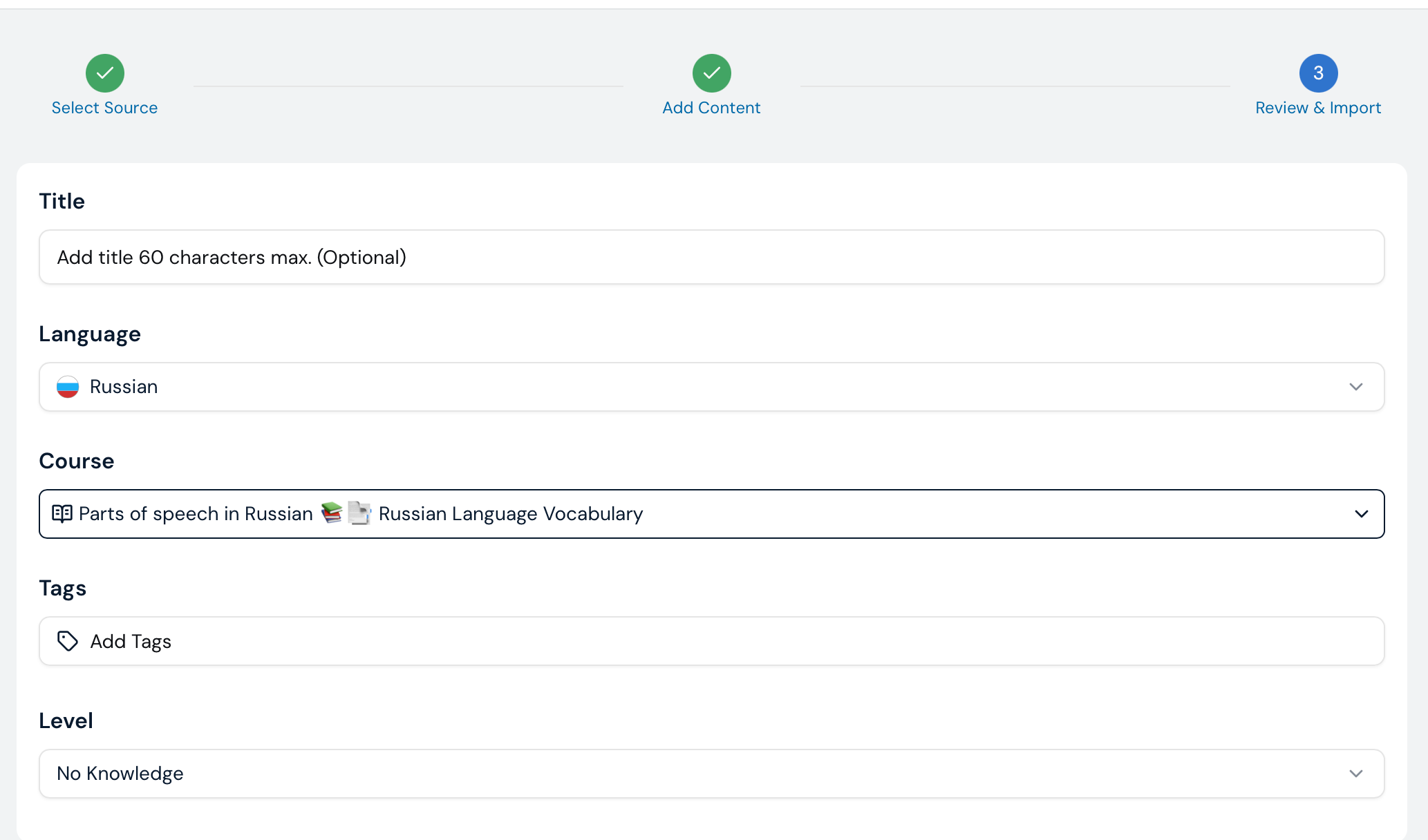
All I want is to import a lesson completely – original audio, and because I don’t want to pay Lingq any more than I already do, I provide the timestamped transcription.
However, today I am presented with a new workflow for importing lessons. It would seem that:
(1) I can upload a text file, but if I do, I cannot upload audio for the lesson – and this definitely implies that you want more money for quality voice transcriptions.
(2) I can upload audio, but if I do, I cannot provide the timestamped transcript for myself.
If I chose option (2), it transcribes the audio. However, does that imply I now have free unlimited transcriptions?
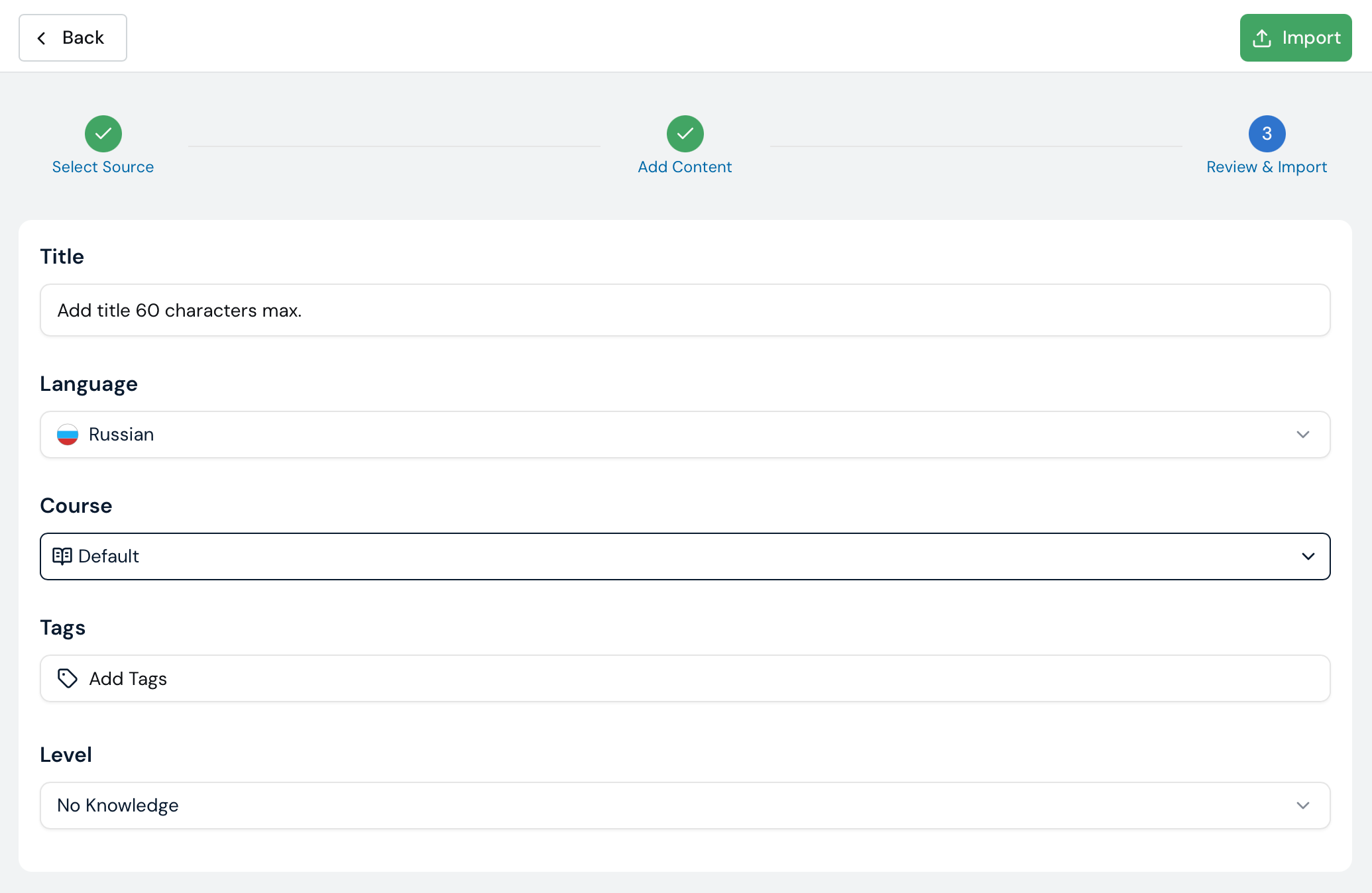
We will make a change that shows an option to add an audio file in the last step (Review & Import) of the text file import flow. This should fix the issue for you.
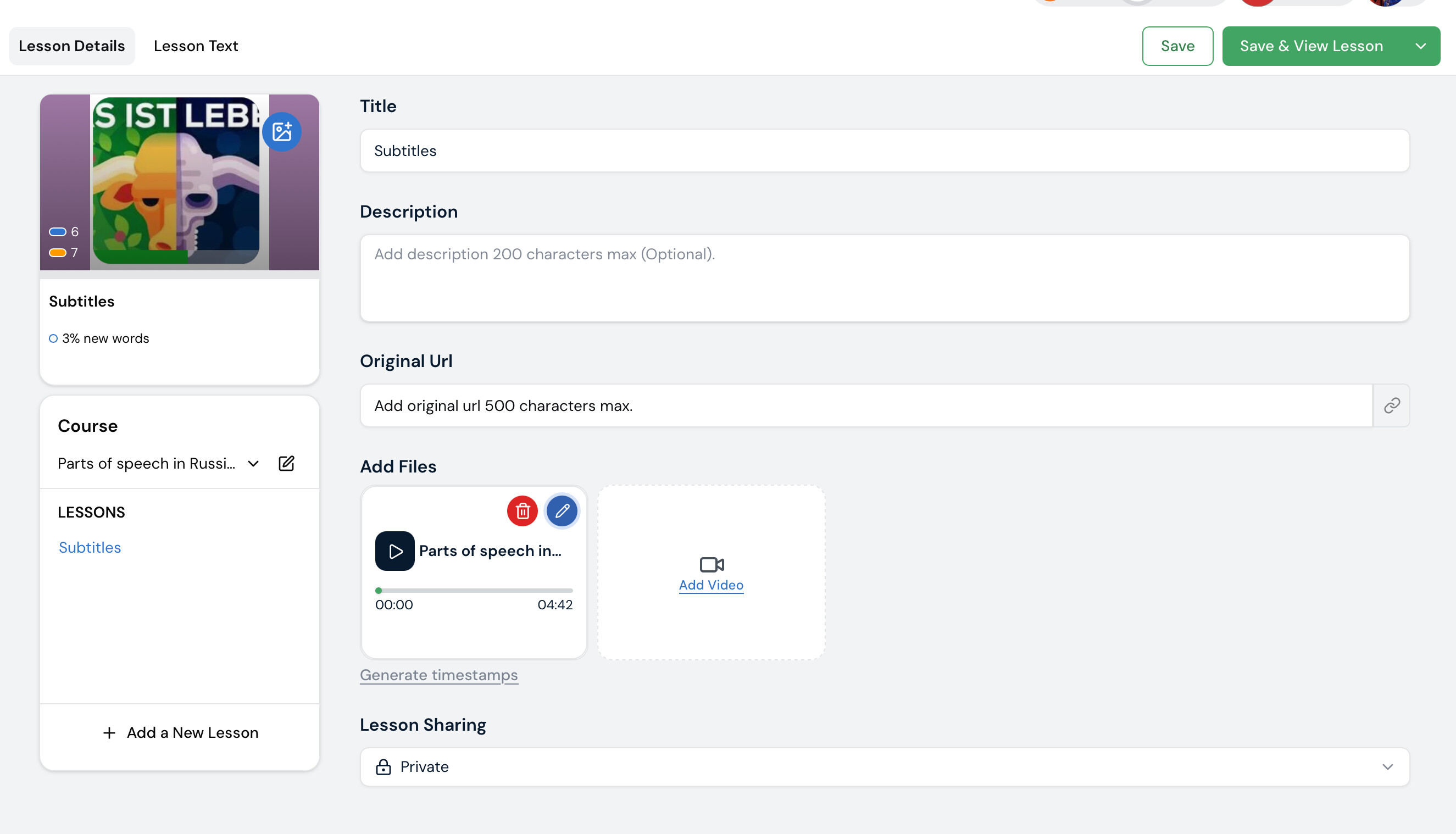
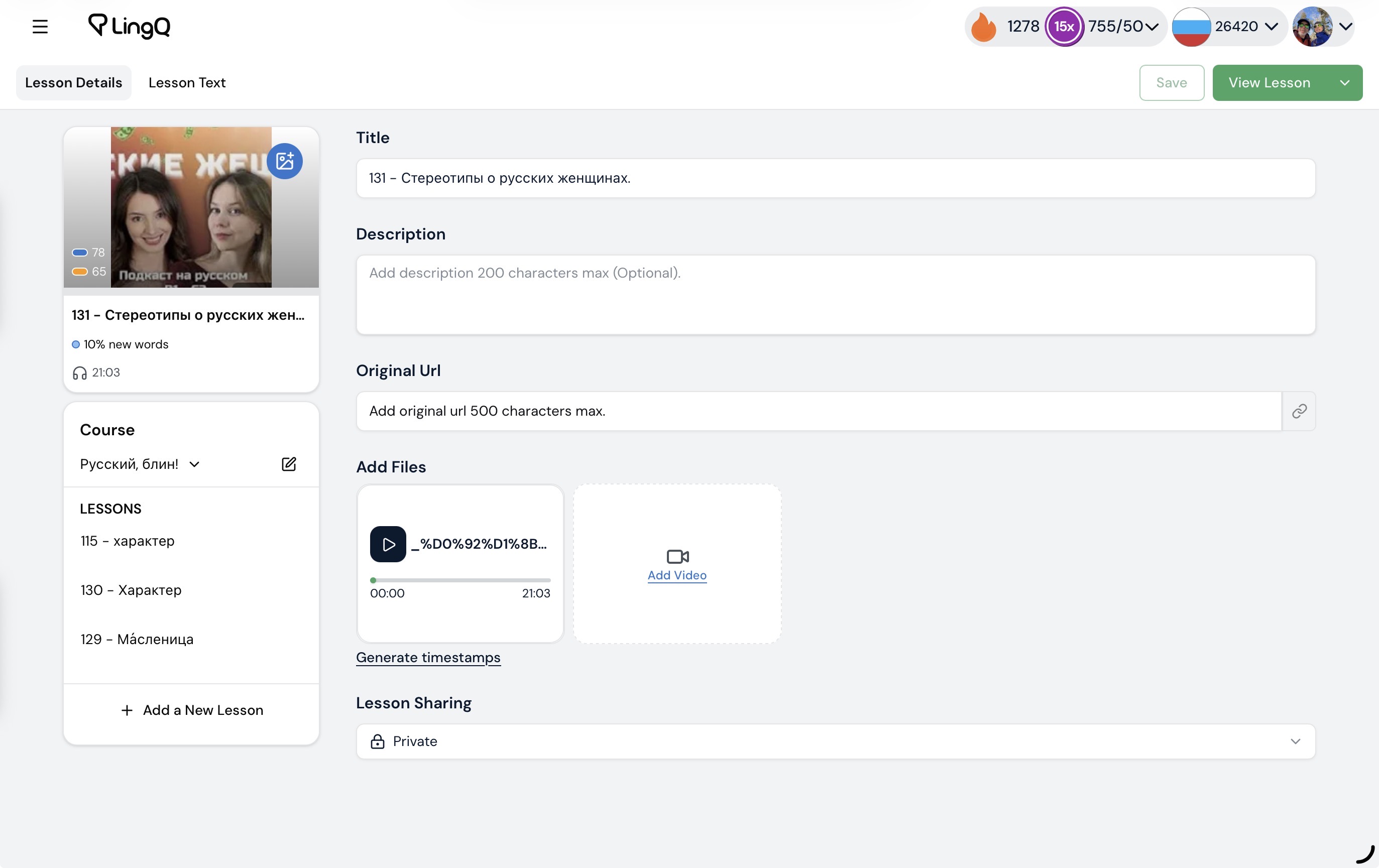
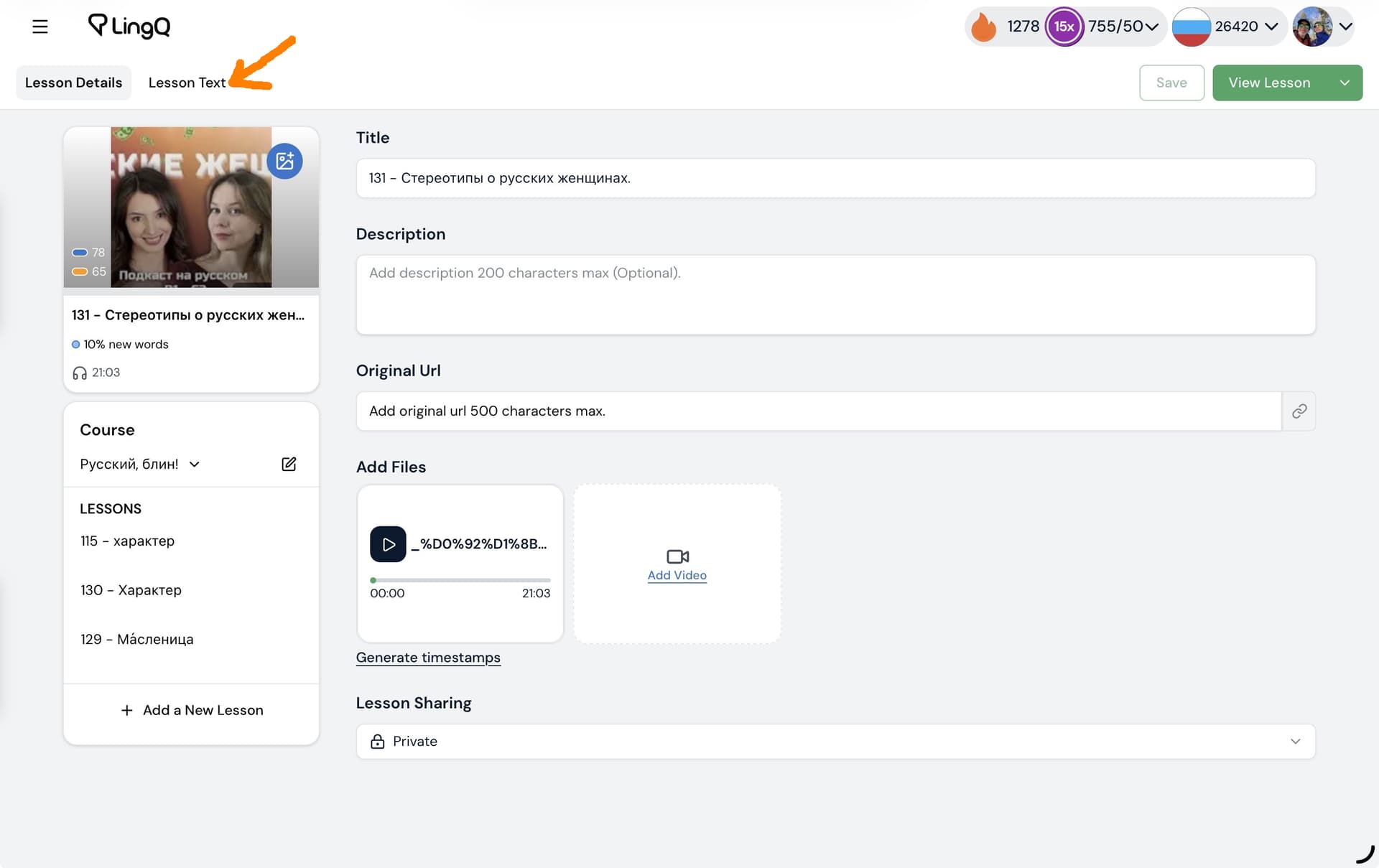
Until we deploy that update you can add audio files to the lesson via the lesson editor page once it has been imported.
I am not satisfied with the newly redesigned import function. For my most frequent use case, everything has become more cumbersome, and in some instances, it no longer works at all.
I frequently import longer texts, such as novels, which I divide into chapters and import (text files & e-books) along with their corresponding audio files. With the new import system, I can no longer upload both text and audio simultaneously to create a lesson. Instead, I must first upload only the text and create the lesson. Once that is complete, I can then, in a second step, edit the lesson and add the audio file. Subsequently, I must save the lesson and edit it yet again in order to create the timestamps in a third step. This has become extremely cumbersome, whereas previously everything could be accomplished in one go.
The situation has become particularly problematic when a chapter exceeds the maximum length. Previously, LingQ would automatically split texts that were too long along with their audio while maintaining synchronization between text and audio. This no longer functions properly. The excessively long text is now split into two lessons in the first step itself. When you then add the corresponding audio file, which is too long, it is not automatically distributed across the text segments, and the synchronization between text and audio becomes completely disrupted. I would essentially need to identify where LingQ splits the text, then use an external tool to locate that position in the audio, manually cut the audio, and then assign the segments to their respective texts. Quite frankly, this is far too time-consuming and cumbersome.
I also find the design somewhat perplexing: When I perform the import via “Type or paste” and insert the text via copy and paste, I am given the option to import matching audio before the import. Unfortunately, however, the automatic splitting of long chapters no longer works properly via this method either: the text and audio become completely out of sync after just a few minutes. Prior to the redesign of the import function, this was never an issue.
Please, I kindly ask for a redesign und correction!
@LuPeng I agree. This at first blush isn’t an improvement for me. It looks kind of cool, and I thought maybe it would grow on me with usage. Not sure. Certainly at this point, it’s just a bother. It would be ideal to choose to use the previous method if desired.
I also think the previous import method is infinitely better.
In the case of studying with videos on the Android app, it improved a lot, but I felt this change to importing was a step backward.
There is another problem. When you edit the course. You’re adding a lesson to this course. In the add content step. In the drop-down menu of courses. The course to which the lesson is added is not automatically selected.
I also have the same problem, I have an mp4 file that is an audiobook, and I also have a text file that’s the actual text from the book. The only path to do this is now to create a text based lesson, then open the lesson and attach the audio file separately.
Please get this fixed soon! I am having huge problems in this area also!
I would be happy for LingQ to make the transcription if it were an accurate one. Transcriptions for German are not too far from accurate, but for Danish are way off.
Would it be possible the have the option to use the old system?
As it stands now, since I have my own transcription, audio, and graphic, I can only start with the transcript, let Lingq process it, then edit both thumbnail graphic and add audio. It’s a cool looking interface, but can’t say it’s improved.
HOWEVER!!!the audio in sentence mode is progressively out of sync with the text as I move from sentence to sentence. THIS IS A HUGE STEP BACKWARD! Looking at lesson I created in which Lingq transcribed it, this does not seem to be a problem.
@nsprung My suggestion is to revert back to the previous version and then have a thorough beta testing period until you get something that works,
I had not noticed this. Went back and checked, and I see that now. So the several lessons I added to my experimental course were not added to the course.
So many issues. This process is for all intents and purposes broken for me now,
@nsprung trying a second import this morning. Seems at first blush that the sync between audio and the transcription (which I provided) is working well. So that’s progress.
We are adding back the ability to add both audio and text files prior to importing the lesson. It will be available soon. This should also fix any new text/audio alignment issues as it will work similarly to how the old page worked.
Much more inconvenient now than a very few days ago. It was pretty straightforward just a few days ago.
Inconveniences …
(1) Having to edit every new imported lesson to change add the audio (since I start with my own transcript)
(2) When adding a new course while editing it, I can add a title, but cannot add a graphic. I have to circle back, find the new course, and change the graphic there.
(3) There is no longer a delete option while editing a lesson (used if I realize I need to start over)
(4) I can now select a course before importing text, but since I was adding the lesson to a course, this should default to that course – not by default create a new course based on the name of the text being imported.
(5) I have to edit the lesson to add a graphic! Why?
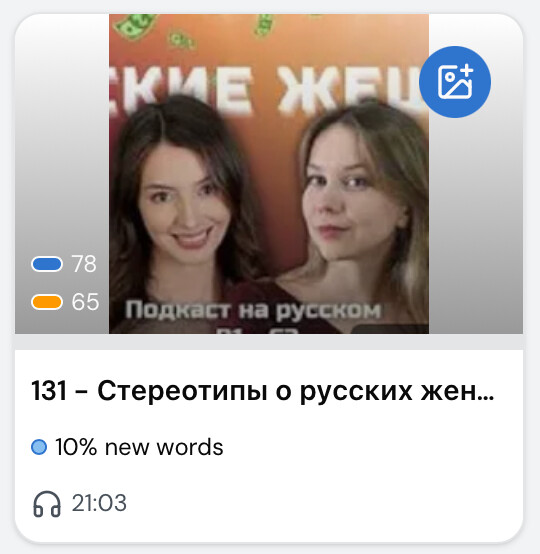
After using the new import, and adding a graphic (after the fact as usual). This lesson shows no graphic on the home screen. It does show a graphic if I “edit” it. So I know it’s there. I have refreshed the browser and tried another browser. Same result.
It looks like it is still possible to add audio and video files after the lesson is created by opening the lesson in the editor, but this is an extra step, which doubles the time. It would be preferable to have an additional ‘advanced’ workflow that allows to add text, audio, video (link) and thumbnail.
Another issue: I did not set tags for the lesson when I first created it and the redesigned editor does not seem to allow to add tags. I also added thumbnail to the lesson and it is visible in the editor, but it is not displayed in the library page.
@nsprung
I can’t see a way to edit the text of the lesson either. I started with the transcript, edited the lesson and added audio, However, I see no way to edit text other than to edit a sentence.