No matter how many times I request that lessons be sorted from newest to oldest, the web app still presents the lessons in oldest to newest order. Note also: it is not possible to edit a course in the iOS app.
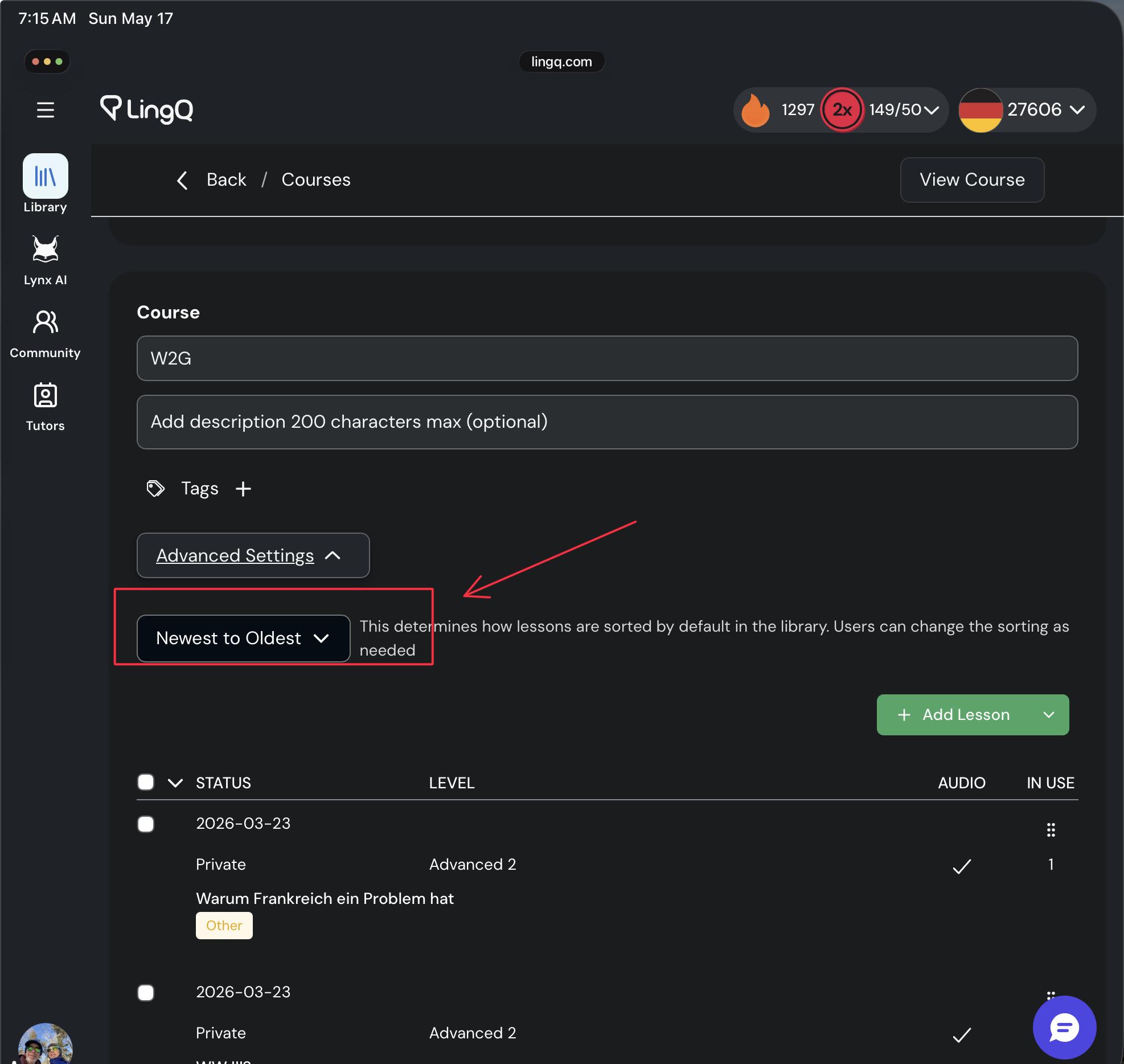
@vernmartin Regarding this “Newest to Oldest” sorting, it will actually show this sorting in the Library, for users that open that specific course. It won’t affect sorting of your lessons on the Edit Course page.
Why should it not effect sorting of my lessons on the edit page? Why is the function selectable if it isn’t going to work? I have to edit each new lesson to add the original URL. This is tedious. I have to return to the edit page for half dozen lessons or so just to scroll down to the bottom once again to locate the yet-to-be-edited lesson, edit it, save it, and return to the edit course page to repeat the tedium.
@vernmartin If you look at the screenshot you attached, it says “This determines how lessons are sorted by default in the Library.”
So this advanced setting applies to course Library view.
I understand what you are saying and that you said this before. What I’m saying is that it is highly inconvenient to (1) have to edit every lesson that has been batch imported in order to add a URL and (2) it’s even more inconvenient because I have to scroll down every time to find the most recently imported lessons to edit.
The batch import has made life so much easier especially with the new import screens. However, if we could add some meta data file to add first of all the source URL and maybe also the desired title (rather than accepting the default), that could make the batch import even more productive than it already is. A simple txt file could serve this purpose.
@vernmartin I appreciate your feedback on this, and will talk with our team.
I have found a workaround: scroll to the end of the list, click on a lesson, paste the URL, then just hit the browser “back button.” This returns me to the place in the course I was at. So: endless scroll solved.