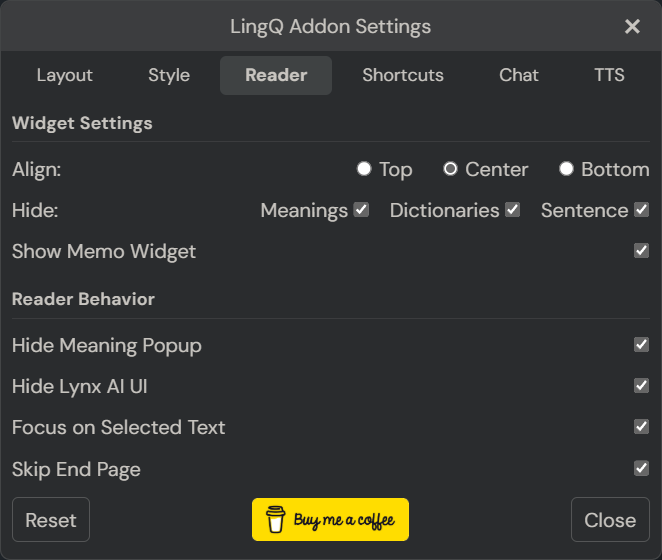
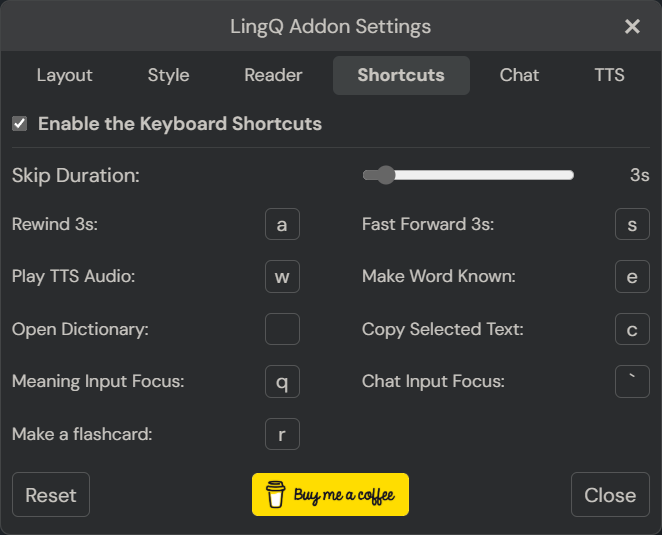
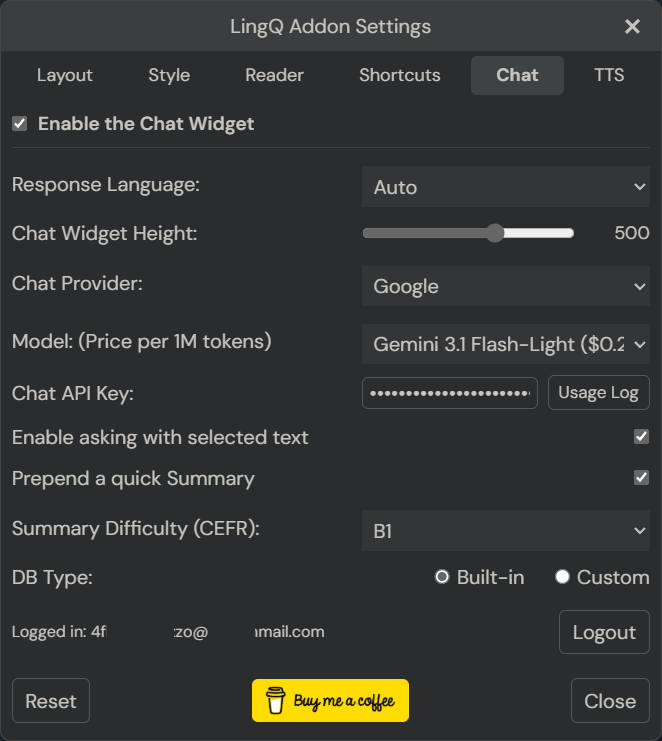
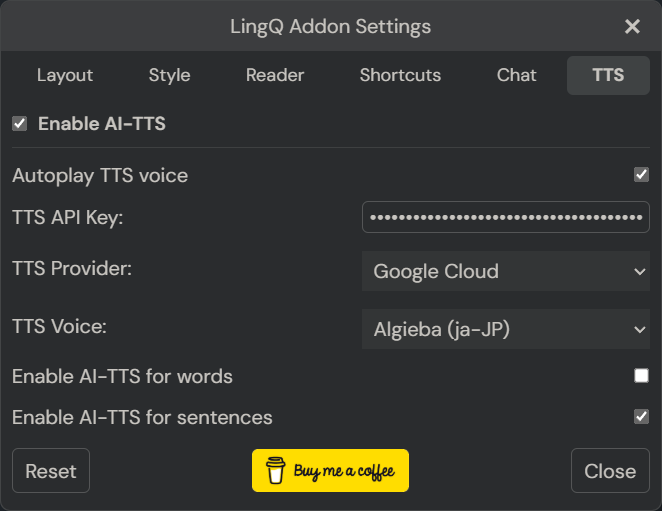
v18.0.0
ElevenLabs offers a free tier, allowing you to generate up to 20,000 characters per month.
If you have an ElevenLabs subscription, your subscription credits will be used automatically.
Pay-as-you-go is also supported, so a subscription is not required.
FYI
| Provider |
Supported Languages & Regional Accents |
| OpenAI |
Multilingual (57+ languages) |
| Google Gemini |
Multilingual (100 ~ 130+ languages) |
| Google Cloud |
40+ languages (with regional accents) |
| ElevenLabs |
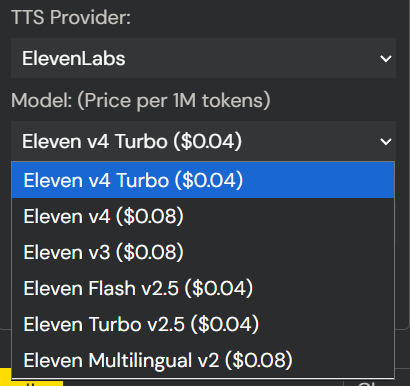
Multilingual (90+ languages with v4/v4 Turbo, 70+ with v3, 32 with v2.5) |
ElevenLabs TTS English Demo
Download Script
I tried to follow the instructions and didn’t manage to be successful.
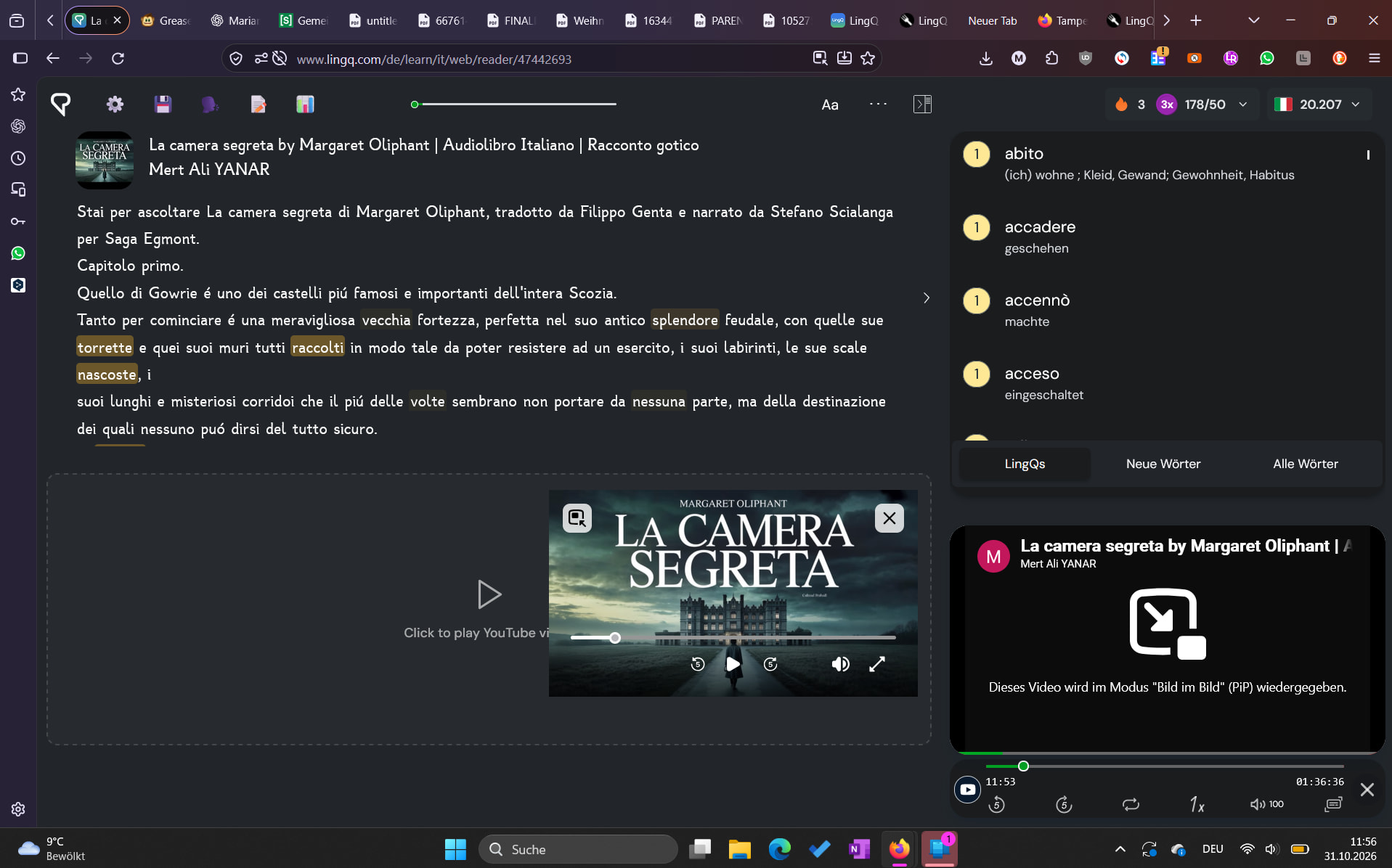
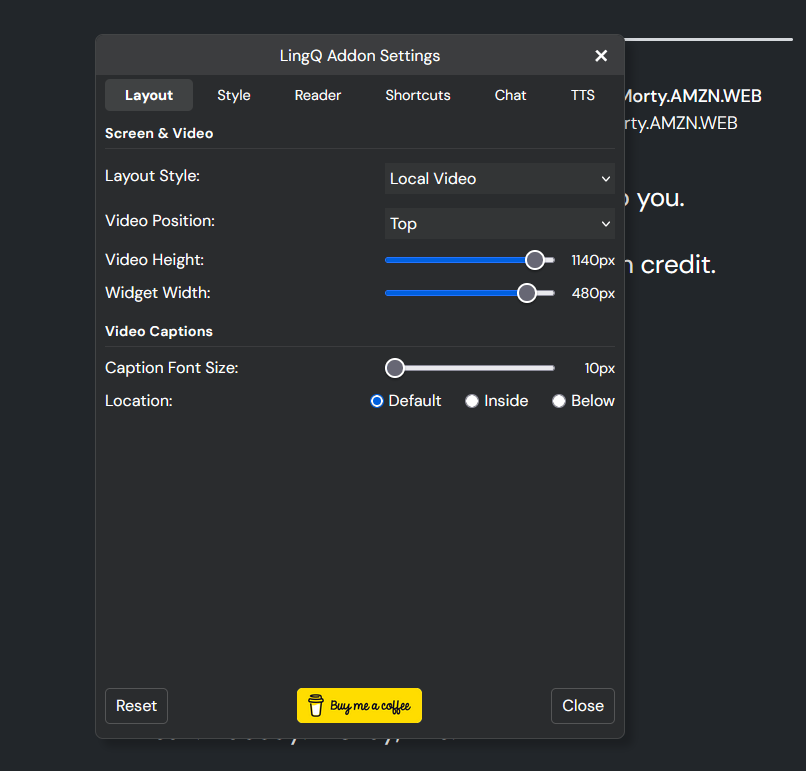
In my case the video is not important, because it is a picture, the most important is the audiobook. I can’t make the video vidget small or get rid of it completely.
What is even more weird, it doubles and is more weird.
it’s a pity that the LingQ doesn’t have a solution for customising the vidgets…
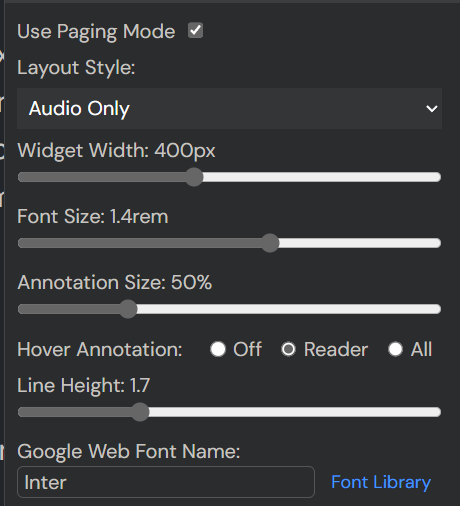
You can use the audio only layout.
It makes the video size minimal and locate that under the widget bar
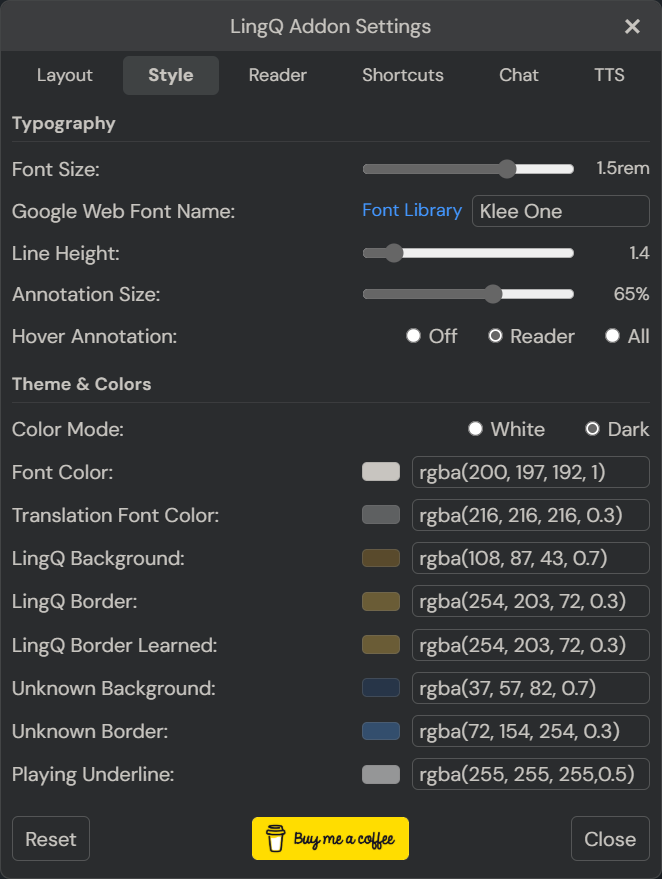
FYI: Here’s a detailed guide to this add-on.
For the doubled video, I think it’s the browser feature, not lingq’s thing. you can turn the pip feature off to make the video single again.
Recently, there’s been a huge UI update in LingQ.
I rewrite almost half of the existing code to adapt to the change. So, it works well with the new LingQ UI.
If your reader is still on the old version, use the v18.0.1. The new version has no backward compatibility.
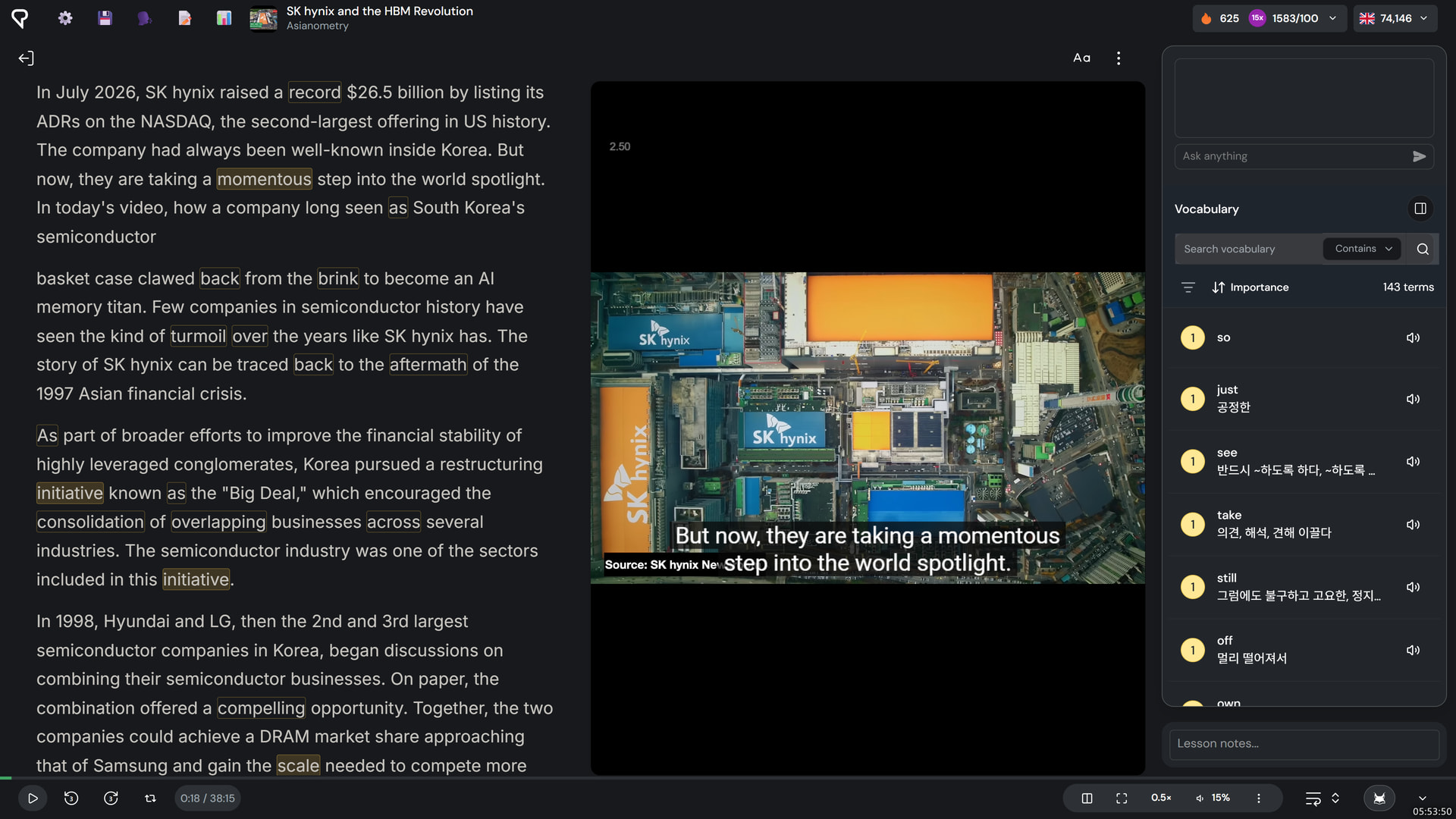
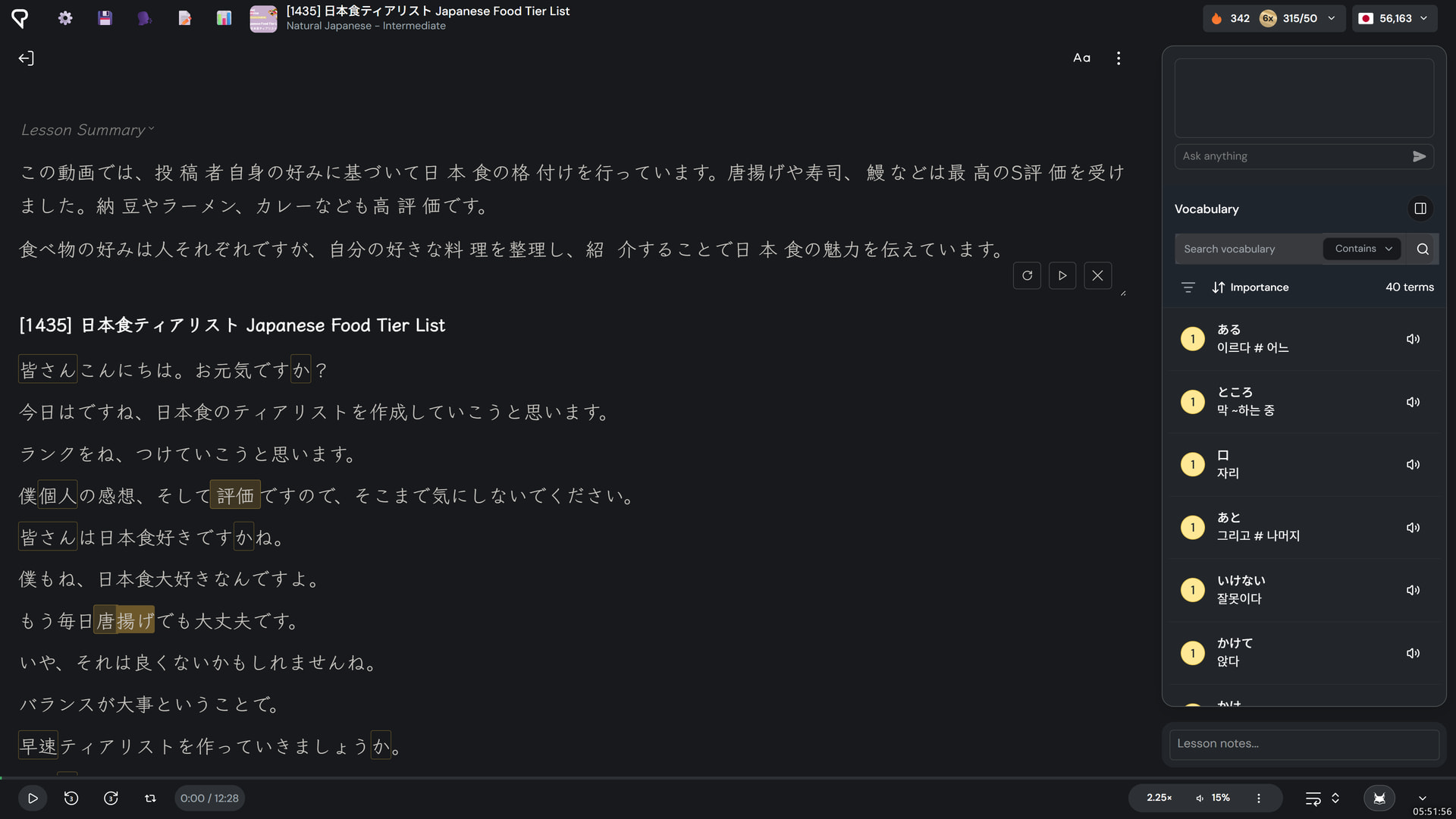
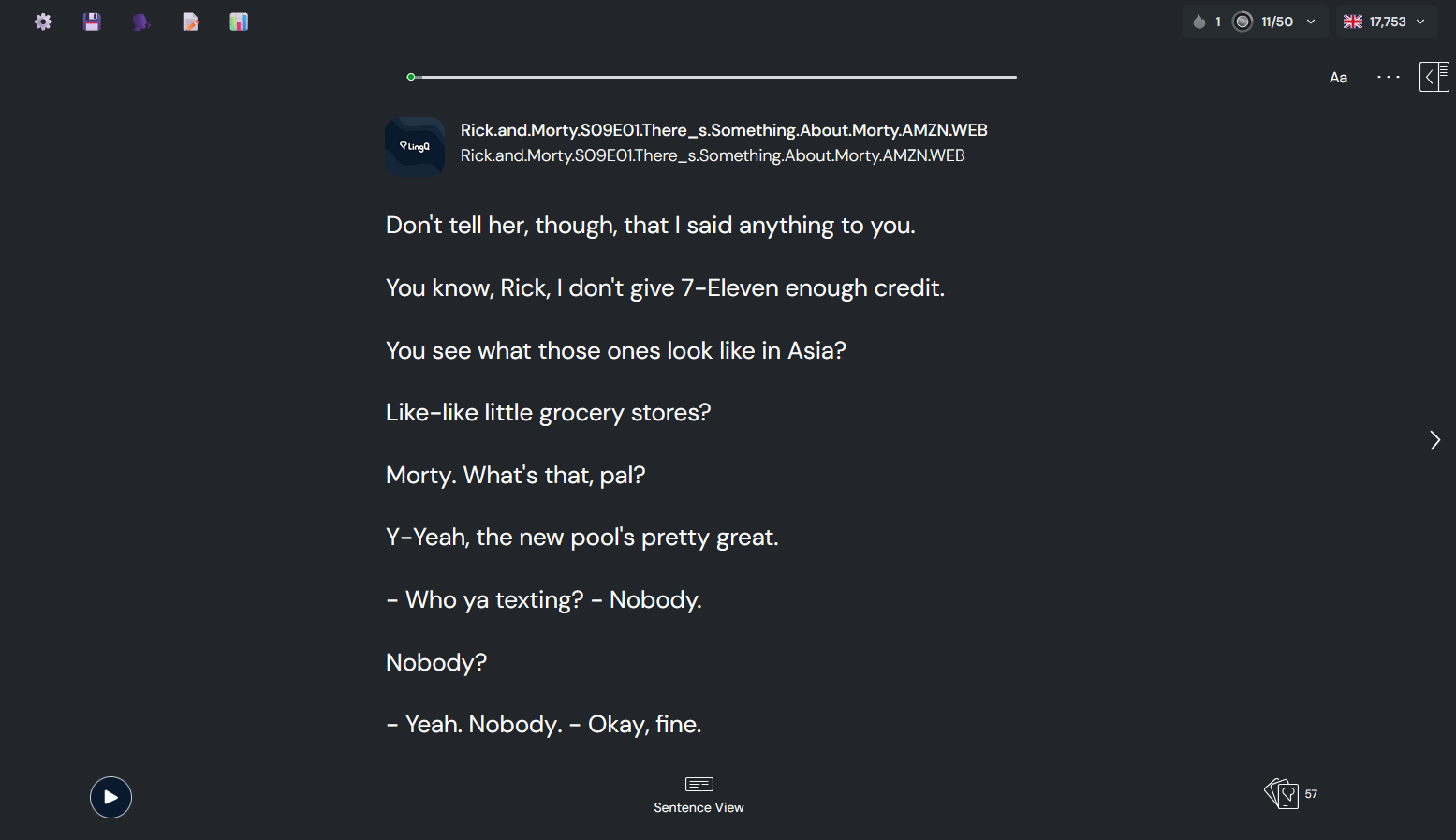
These are the captures of the add-on with the new LingQ UI.
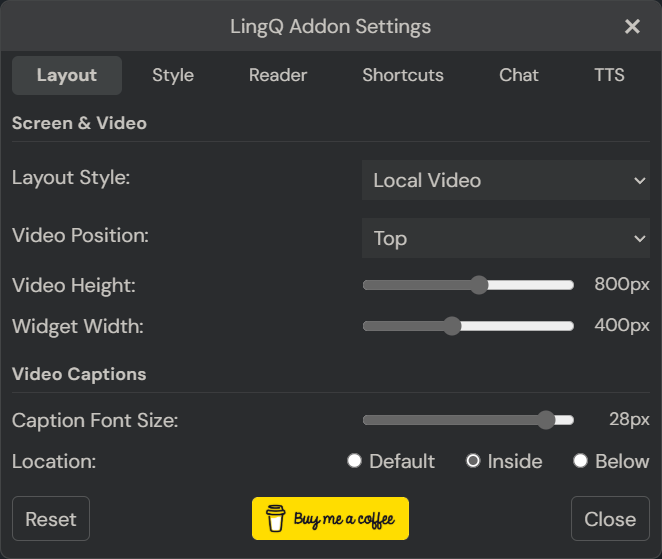
Local Video Layout
Video Layouts
Audio Lesson
Download Script
If it was helpful to you, you can

v19.3.0: Relocate reader controls to the top header bar: make the UI distraction-free and ensure more content space.
Before
After
After updating to the latest version of the add-on, the local player doesn’t open at all. I tested this in both Mozilla Firefox and Microsoft Edge, but it fails to launch in both browsers.
I think you’re using the old (not a new beta) version of the reader. Please use the older version. Before the beta testing is ended and public.
1 Like
v20.0.0
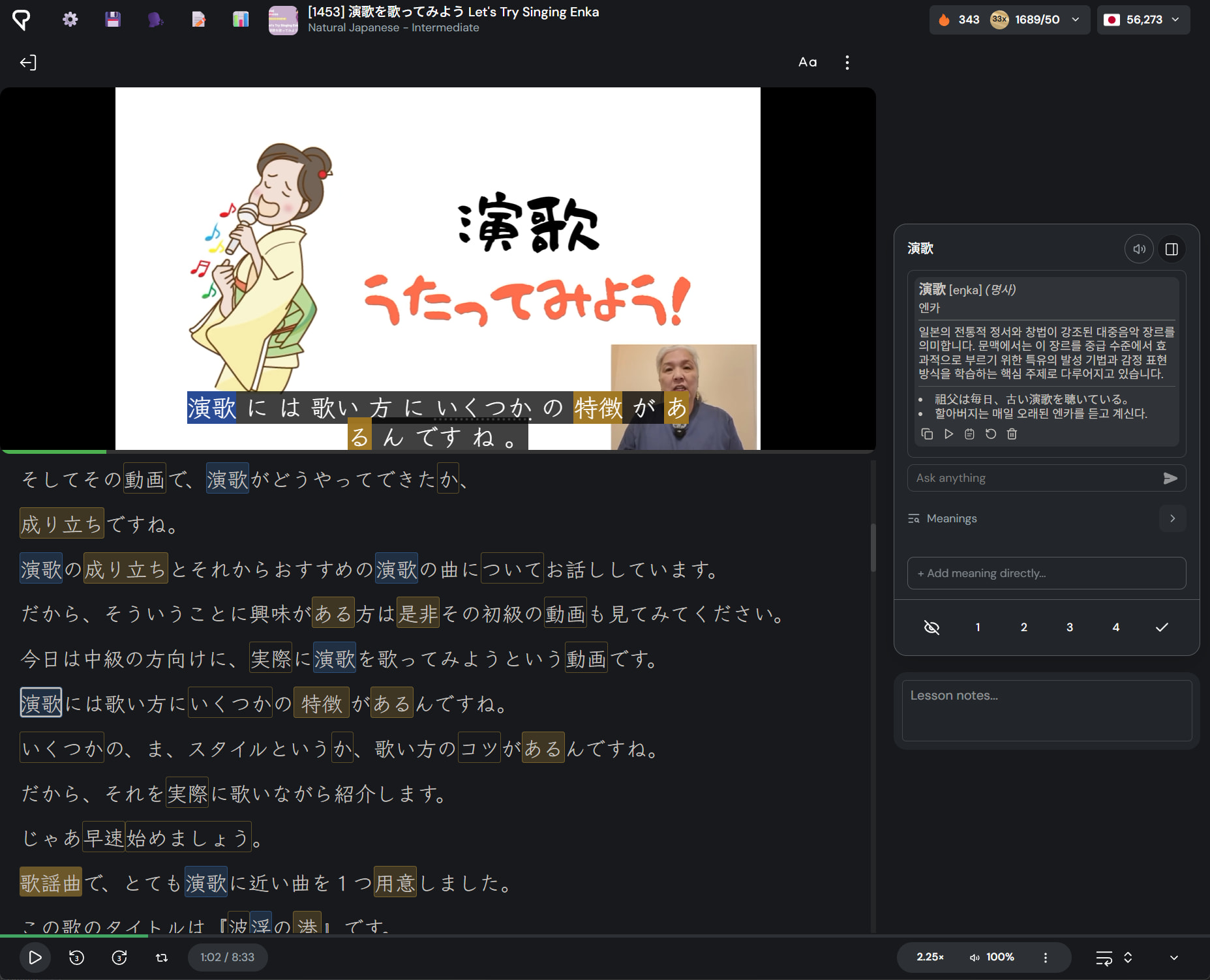
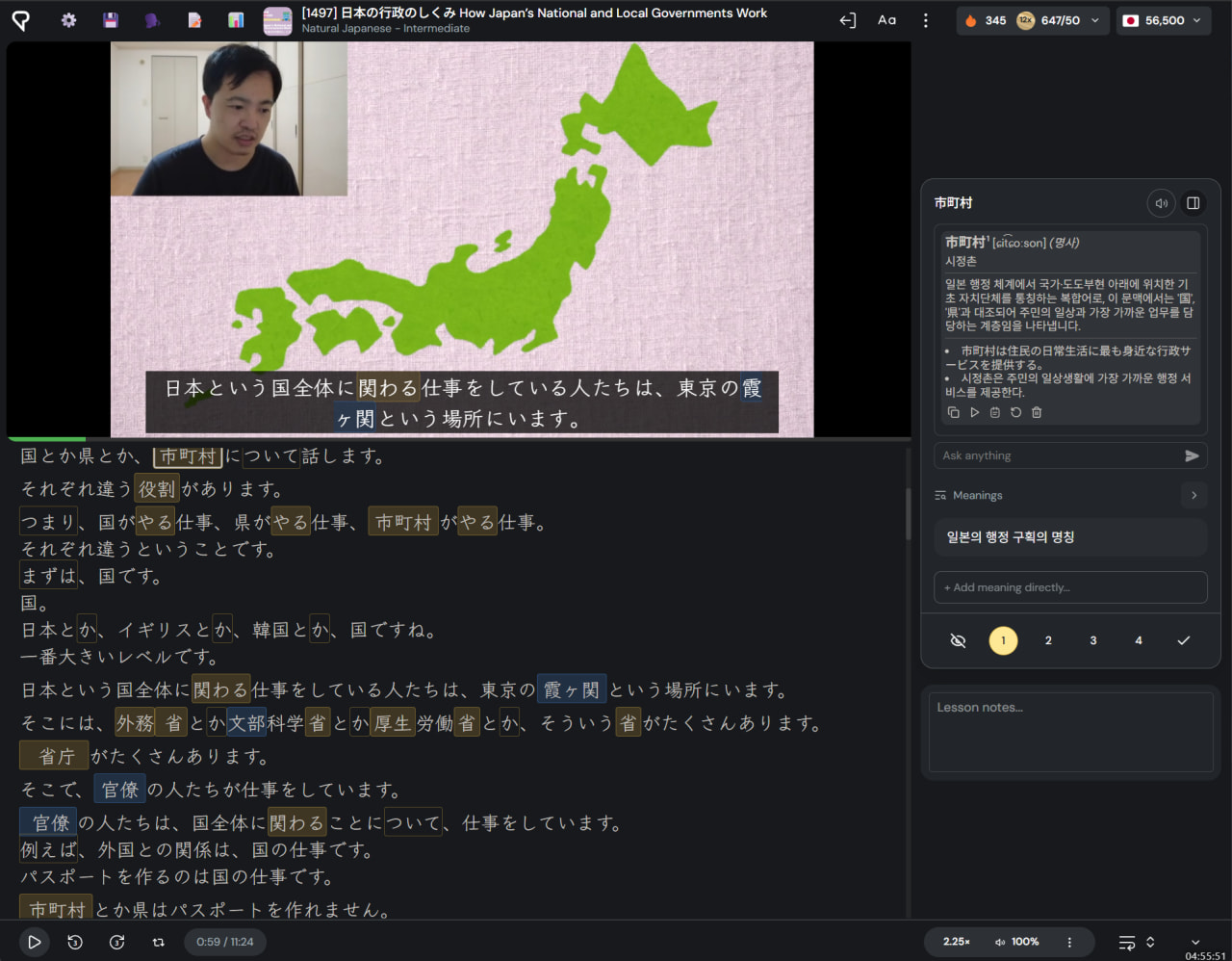
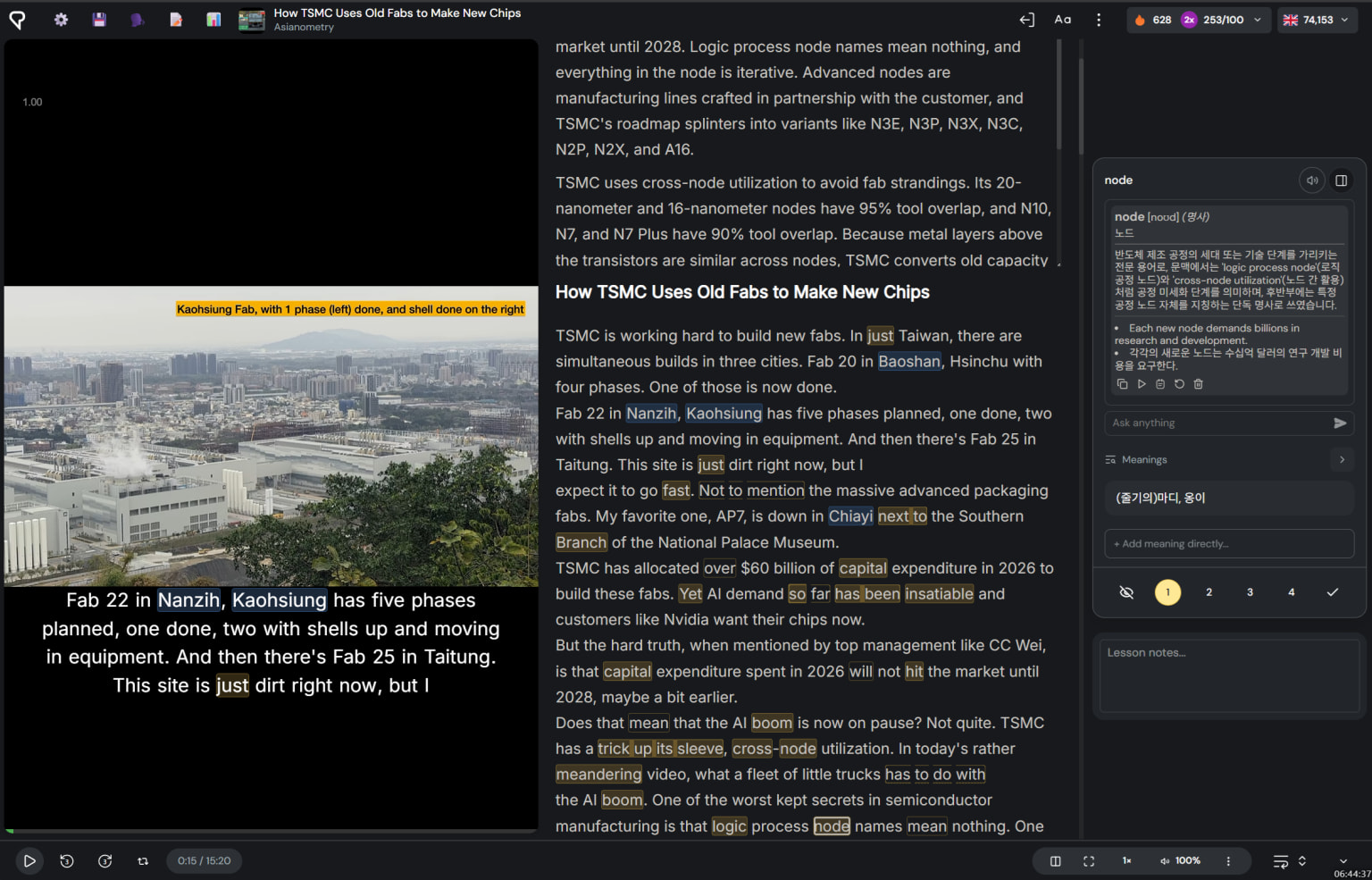
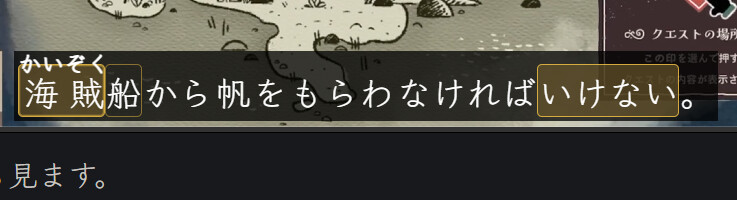
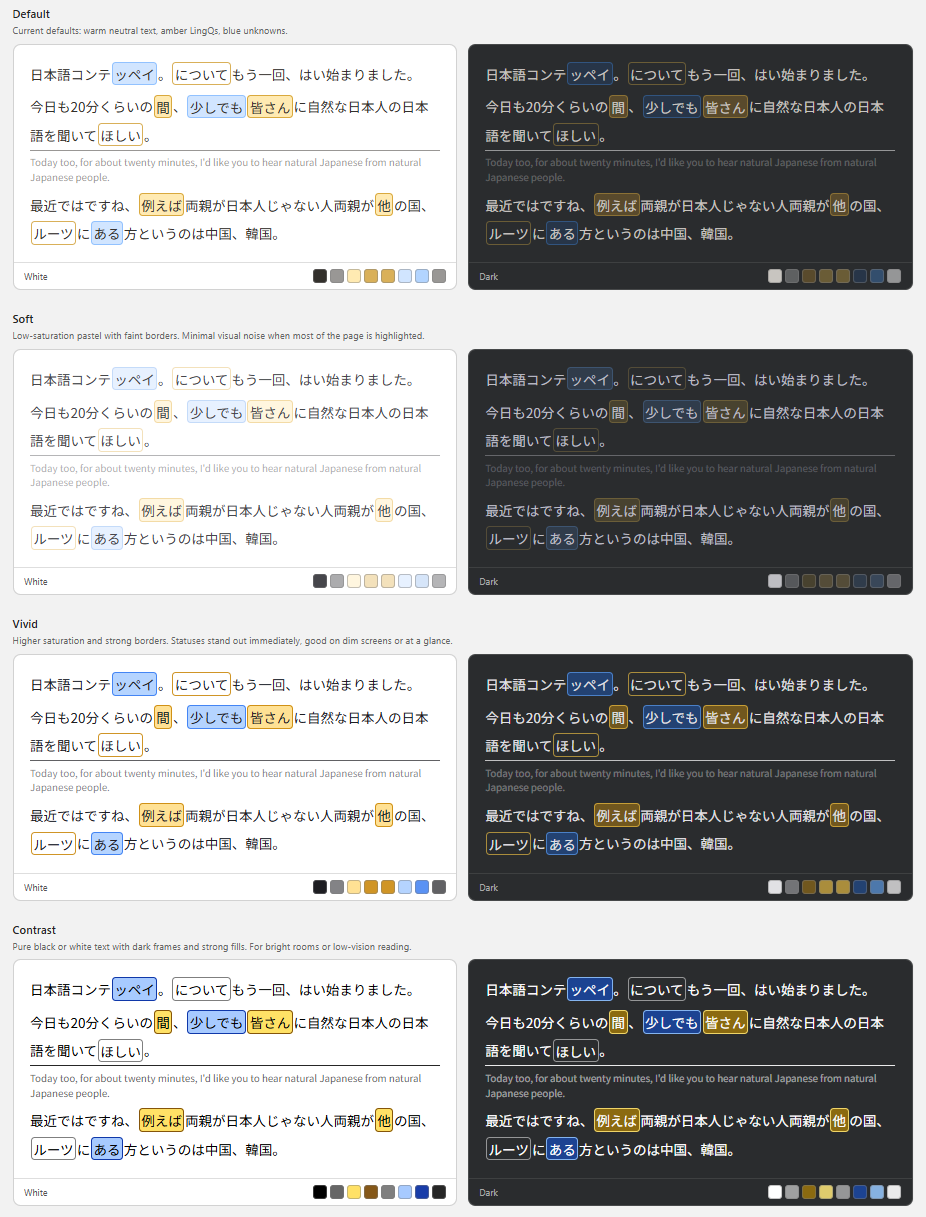
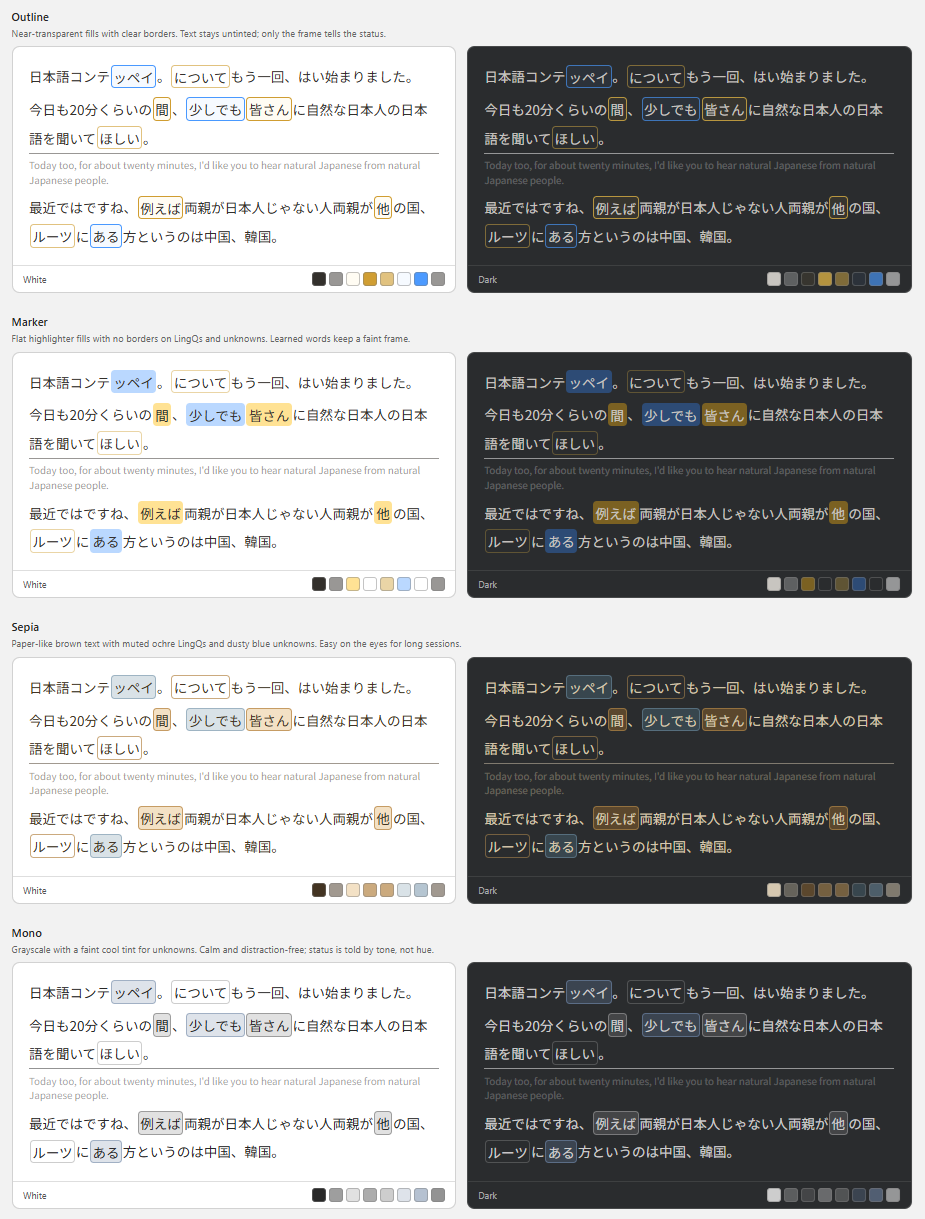
- Add word-level subtitle highlighting and clicking to video lessons. You can click words directly in the subtitles, and they are highlighted by their LingQ status just like in the reader.
- It works for both the local video player and embedded YouTube lessons.
Local Video (video-top)
YouTube Video (video-left)
Download Script
If it was helpful to you, you can
v20.5.0: Add a Previous Sentence button to the player footer that restarts the current sentence and steps back one sentence on each rapid click. You can listen to the sentence you don’t understand multiple times easily.

v20.6.1: Pause playback at the end of the current subtitle while the pointer hovers it in the local video player, and resume when the pointer leaves. You don’t need to pause the video by hand to read a sentence. If you don’t hover the subtitle, nothing changes.
Download Script
v20.8.0: Show the reader annotation above subtitle words on hover
v20.9.0: Allow dragging across subtitle words to select the whole phrase in the reader: Now the words in subtitles work almost the same as the reader.